
PicSift Guide
How to clean up iPhone photos safely
A careful step-by-step method to free iPhone photo storage without losing important memories, including iCloud Photos and Recently Deleted guidance.
Cleaning up iPhone photos safely means knowing what will sync, protecting anything irreplaceable, and deleting in small groups you can verify. Start by checking iPhone and iCloud storage, make a separate copy of critical originals, then review and confirm your choices before relying on Recently Deleted as a temporary recovery window.
This approach is slower than tapping “delete all,” but it greatly reduces the chance of removing a memory you meant to keep.
1. Check what is actually using space
Open Settings → General → iPhone Storage before deleting anything. Note the available device storage and how much space Photos uses. If you also use iCloud, open Settings → your name → iCloud and check that storage separately.
Device storage and iCloud storage are different limits. Apple’s photo and video storage guide explains where to find both numbers and how Optimize iPhone Storage can keep smaller versions on the device while full-resolution originals remain in iCloud.
Write down the current numbers or take a screenshot. That gives you a real baseline instead of guessing whether a cleanup helped.
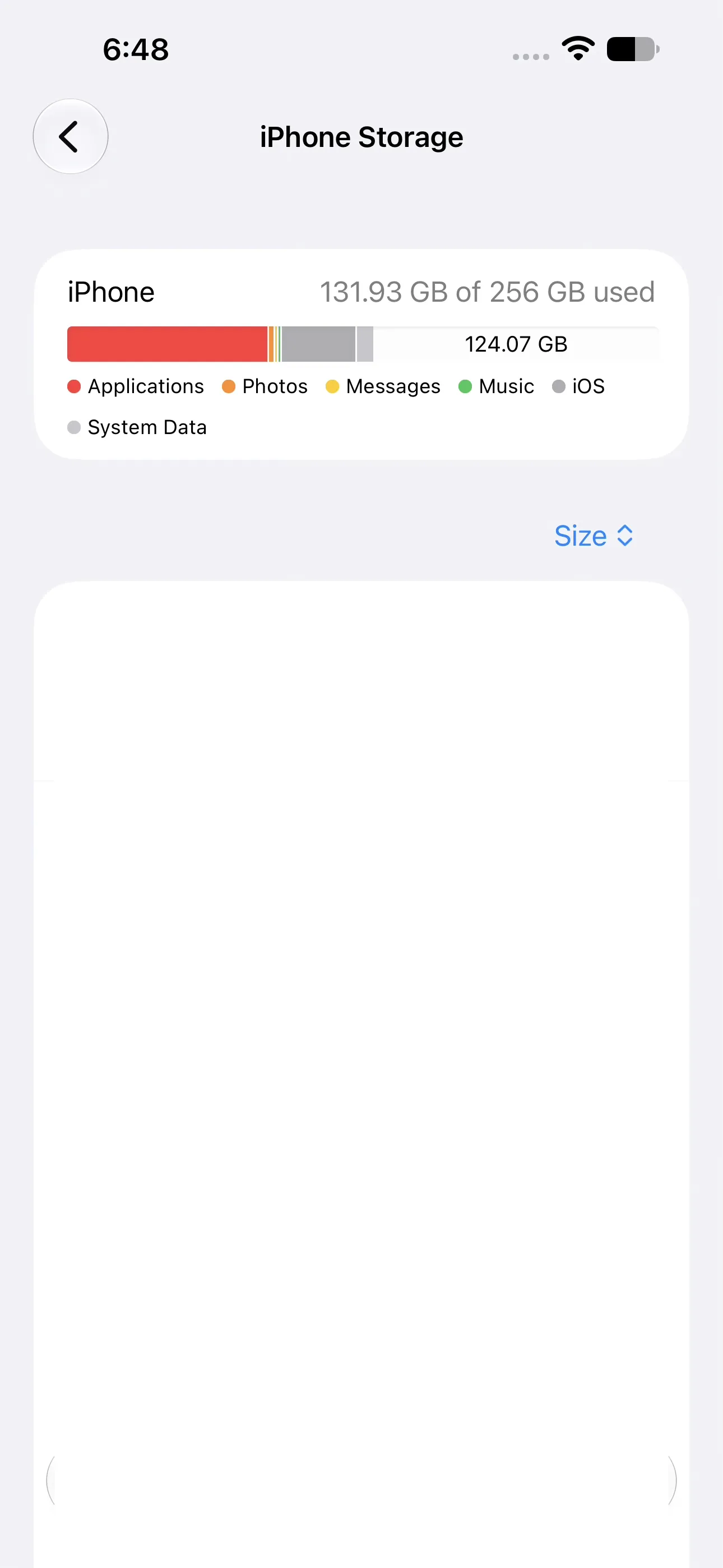
Record the device-level storage chart before cleanup so you can compare it later. Captured on iOS 27 with PicSift 1.3.
2. Understand what iCloud Photos will sync
If Sync this iPhone is enabled for Photos, your library is synchronized across devices signed in to the same Apple Account. Deleting a photo on the iPhone also removes it from iCloud Photos and other devices using that library. Apple describes this behaviour in its iCloud Photos setup guide.
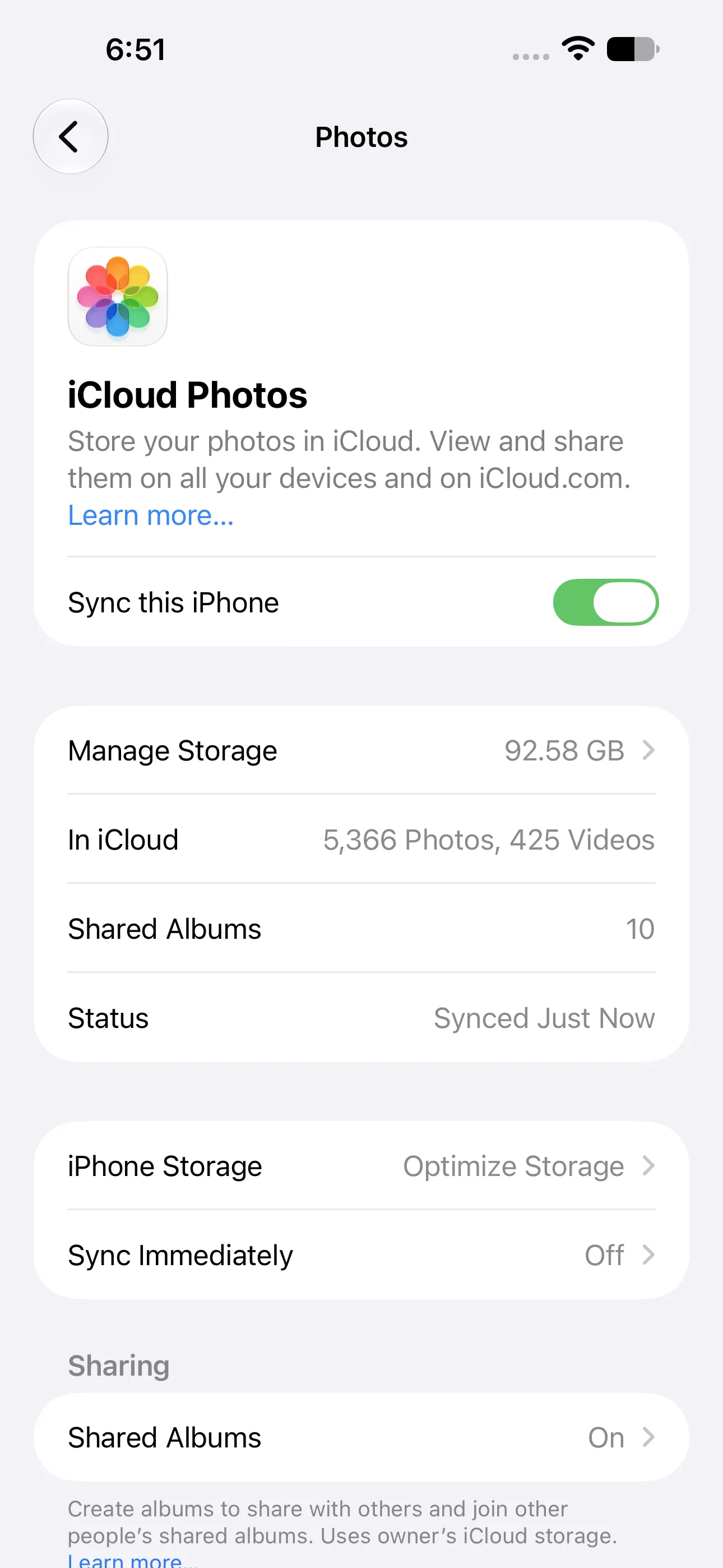
Check both the sync status and the iPhone Storage choice before a large cleanup. Captured on iOS 27 with PicSift 1.3.
Do not assume that a photo visible on a Mac or iPad is an independent backup. It may be another view of the same synchronized library.
Before continuing, answer these questions:
- Is iCloud Photos turned on?
- Has the library finished syncing?
- Do you have another copy of your most important photos?
- Are you cleaning device storage, iCloud storage, or both?
3. Make a separate copy of irreplaceable originals
Protect the photos and videos you could not recreate: family milestones, travel originals, work documentation, and anything with legal or sentimental value. Export them to a Mac, PC, external drive, or another storage location you control.
Apple documents how to archive or make copies of iCloud information, including exporting unmodified photo and video originals. Apple also notes that photos already synchronized with iCloud Photos are not duplicated inside the regular iCloud device backup in its backup methods overview.
Confirm that a few exported files open correctly before deleting from the phone. A copy is only useful if you can actually retrieve it.
4. Start with low-risk, high-volume categories
Begin with items that are easy to judge:
- accidental screenshots and screen recordings;
- downloaded images you can obtain again;
- blurry or obstructed shots;
- repeated takes where one version is clearly best;
- large videos you have already exported;
- old reference images that are no longer useful.
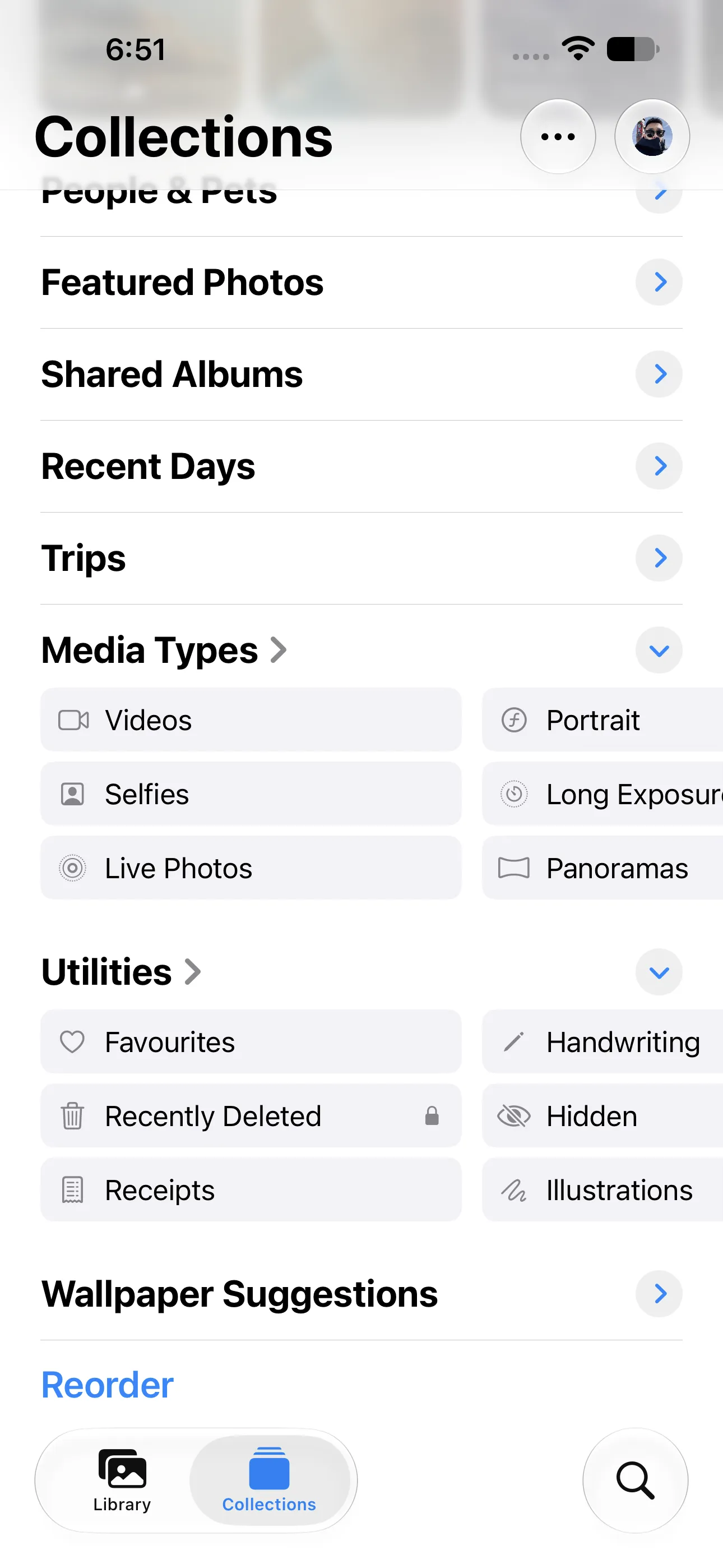
Apple Photos groups videos under Media Types and keeps Recently Deleted under Utilities. Other media-type tiles may require horizontal scrolling or a different layout. Captured on iOS 27 with PicSift 1.3.
Apple Photos includes a Duplicates collection that can merge detected duplicate photos and videos. Apple explains how it works in Merge duplicate photos and videos on iPhone. Use that for detected duplicates, but remember that many cleanup decisions are personal rather than technical: two similar photos may represent different expressions, moments, or framing.
5. Review small groups instead of the whole library
Choose one month, trip, album, or media type and finish that group before moving on. A short review session makes fatigue and impulsive decisions less likely.
For each item, ask:
- Would I look for this again?
- Is this the best version of the moment?
- Is the original safely stored elsewhere if it matters?
- Am I keeping it from habit, or because it has a real use?
PicSift is designed for this deliberate step. It presents photos and videos for keep-or-remove decisions, stores review progress on the iPhone, and lets you inspect marked items before confirming cleanup. It does not upload your photo library to PicSift-operated servers for processing, and it does not automatically decide that a memory is disposable.
6. Confirm before the deletion reaches Apple Photos
Treat the confirmation screen as a final review, not a formality. Scan the marked group again and remove anything that creates doubt. If a photo needs more thought, keep it or leave it unreviewed and return later.
PicSift sends deletion requests through Apple’s Photos system only after you initiate and confirm the cleanup. Apple Photos remains responsible for changing the library, synchronizing that change through iCloud Photos, and managing recovery.
7. Use Recently Deleted as a recovery window
Apple normally keeps deleted photos and videos in Recently Deleted for 30 days. During that period, you can recover them or remove them permanently. The collection is normally locked with Face ID, Touch ID, or the device passcode. Follow Apple’s current steps in Delete or hide photos and videos on iPhone.
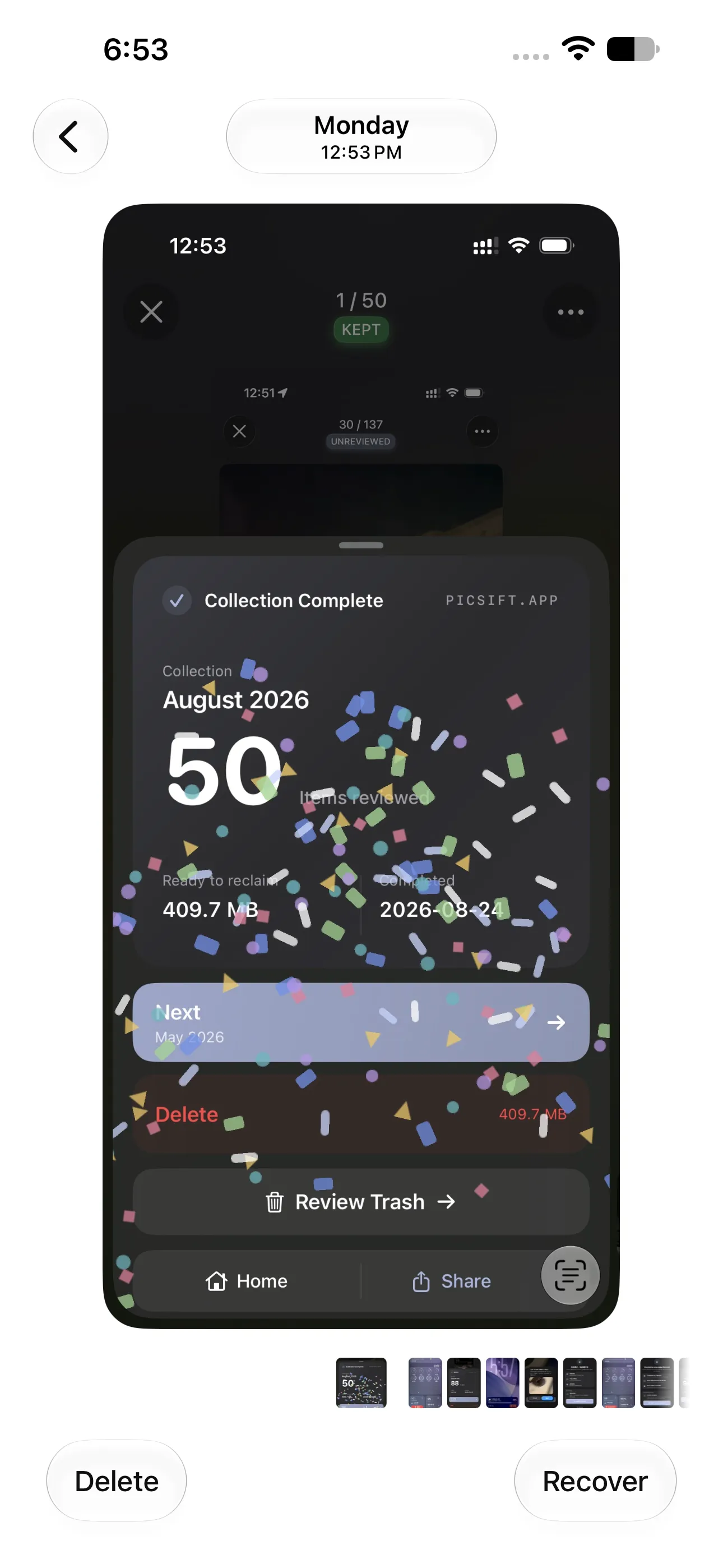
An item opened from Recently Deleted offers separate Delete and Recover actions. Permanent deletion removes Apple Photos’ normal recovery option. Captured on iOS 27 with PicSift 1.3.
After a cleanup:
- open Photos;
- go to Collections → Recently Deleted;
- unlock the collection;
- scan the deleted items for mistakes;
- recover anything you did not intend to remove.
Do not empty Recently Deleted immediately unless you have verified the selection and need the storage urgently. Permanent deletion removes the recovery option. Apple also warns that recovery may not be available when an iCloud storage limit has already been exceeded.
8. Measure the result and repeat
Return to iPhone Storage after Photos and iCloud have had time to update. Compare the result with your starting point. Storage totals can take time to recalculate, and synchronized libraries may need network time to finish processing changes.
A sustainable routine is more useful than a one-time purge. Try ten minutes each week, one month of photos at a time, or one category such as screenshots or videos.
A safe cleanup checklist
- I checked device and iCloud storage separately.
- I know whether iCloud Photos is enabled and synchronized.
- I exported and opened copies of irreplaceable originals.
- I started with an easy, limited category.
- I reviewed each keep-or-remove decision.
- I checked the final deletion group before confirming.
- I reviewed Recently Deleted before removing anything permanently.
- I compared storage before and after the cleanup.
Where PicSift fits—and where it does not
PicSift is useful when the difficult part is reviewing a mixed photo library and making thoughtful decisions one item at a time. It complements Apple Photos rather than replacing it: Apple owns the library, iCloud synchronization, detected duplicate merging, permissions, and Recently Deleted; PicSift provides a focused review and confirmation workflow on your iPhone.
PicSift is not a backup service, cloud photo library, or promise that every unwanted image can be identified automatically. Keep an independent copy of important originals and use Apple’s recovery tools when needed.
For product-specific details, read the PicSift Privacy Policy or visit PicSift Support.
Frequently asked questions
Does deleting iPhone photos also delete them from iCloud?
Yes, when iCloud Photos is enabled. The deletion synchronizes to iCloud and other devices signed in to the same Apple Account with iCloud Photos turned on.
How long do deleted iPhone photos stay recoverable?
Apple normally keeps them in Recently Deleted for 30 days. You can recover them or permanently delete them during that period, subject to Apple’s stated exceptions.
Is Optimize iPhone Storage the same as deleting photos?
No. Optimize iPhone Storage can replace some full-resolution local originals with smaller device versions while retaining full-resolution originals in iCloud. The photos remain part of your library.
Can PicSift recover a permanently deleted photo?
No. PicSift does not operate a backup of your photo library. Recovery is handled through Apple Photos and any separate copies or backups you maintain.