
PicSift Guide
How PicSift works with iCloud Photos
Learn how PicSift reviews an iCloud Photos library on iPhone, what stays on device, when originals download, and how deletions sync across devices.
PicSift works with the photo library that Apple Photos makes available on your iPhone, including accessible items from iCloud Photos. PicSift handles the on-device review workflow; Apple handles your iCloud account, original-file downloads, synchronization across devices, library changes, and Recently Deleted.
The most important consequence is simple: if iCloud Photos is enabled, a deletion confirmed on your iPhone is not a device-only deletion. Apple synchronizes that change to iCloud Photos and your other devices using the same library.
The short version
| Task | PicSift | Apple Photos and iCloud |
|---|---|---|
| Show accessible photos and videos for review | Yes | Provides the library through PhotoKit |
| Store keep, remove, and review progress | On your iPhone | No PicSift review state is added to iCloud Photos |
| Download an iCloud-only original | Requests the asset when needed | Decides availability and performs the download |
| Upload your library to PicSift servers | No | iCloud Photos may sync media to Apple |
| Apply a confirmed deletion | Requests the change through Apple Photos | Changes the library and syncs the deletion |
| Recover a recently deleted item | No | Apple Photos manages Recently Deleted |
Apple describes PhotoKit as the framework apps use to work with media managed by Photos, including assets from iCloud Photos. See Apple’s PhotoKit documentation for the system boundary.
1. PicSift does not connect to your iCloud account directly
You do not sign in to an Apple Account inside PicSift. The app requests permission to work with the Photos library on your iPhone, and iOS decides which photos and videos the app can access.
PicSift does not receive your Apple Account password, manage your iCloud plan, or operate a separate cloud copy of your photo library. Review decisions, cached media details, progress, and preferences are stored locally by PicSift on the device.
This distinction matters because two services are involved:
- PicSift provides a focused interface for reviewing, marking media as kept or for removal, and leaving uncertain items unreviewed.
- Apple Photos and iCloud Photos store and synchronize the library, provide media to apps through system frameworks, and apply library changes.
2. What you see depends on the library available to the iPhone
When iCloud Photos is enabled, Photos can display media stored in iCloud alongside media already downloaded to the iPhone. Apple says that iCloud Photos keeps the library current across devices signed in to the same Apple Account, although the time required for items and changes to appear can vary with library size and internet speed. Apple explains this in Set up and use iCloud Photos.
PicSift works from that system-provided library view. It does not run a separate scan of iCloud.com and cannot reveal media that Apple Photos has not made available to the device or that your Photos permission excludes.
Before a long review session, open Apple Photos and confirm that the expected library, recent photos, and albums appear there.
3. Optimize iPhone Storage may leave originals in iCloud
With Optimize iPhone Storage enabled, Apple can keep full-resolution originals in iCloud and smaller, space-saving versions on the iPhone. When an original or a higher-quality version is needed, iOS may download it over Wi-Fi or cellular data.
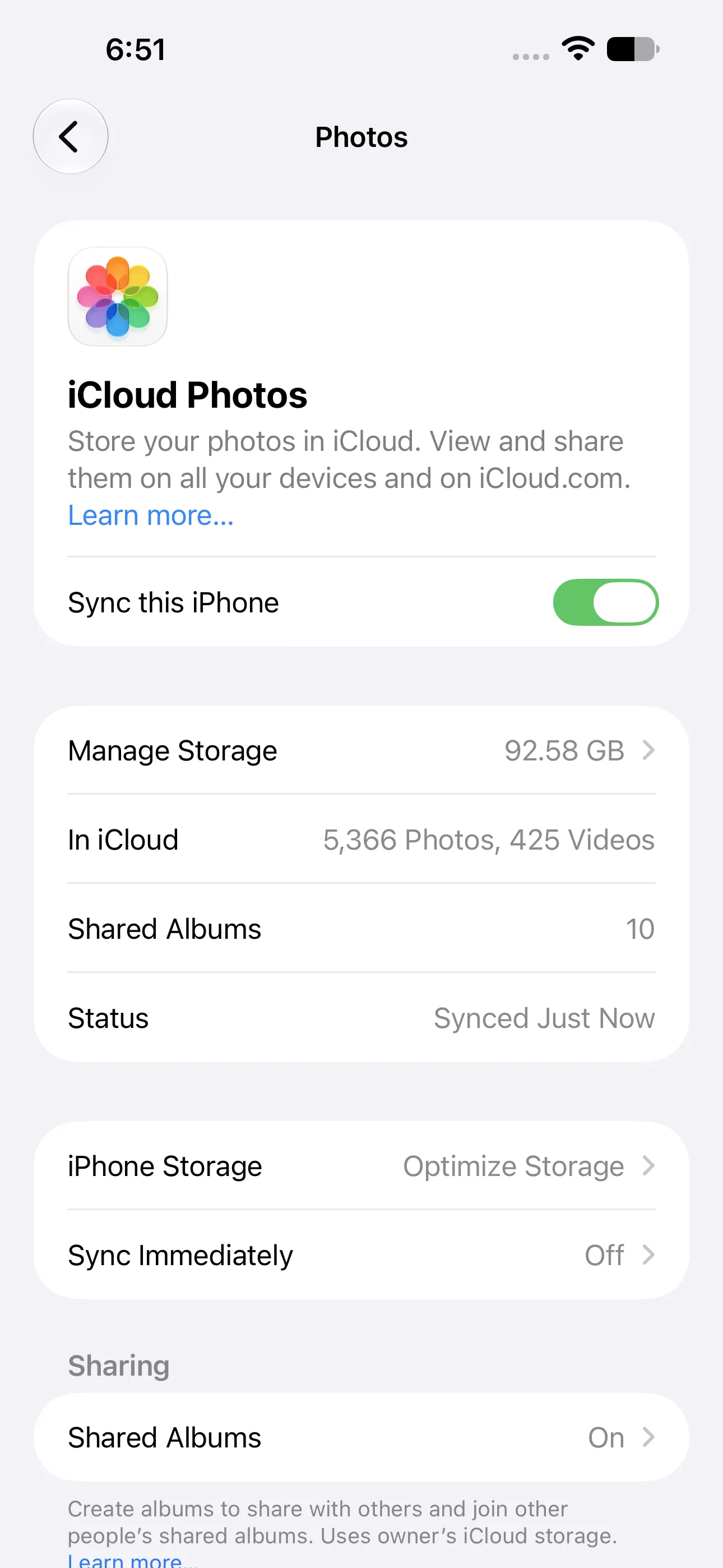
PicSift works with the Photos library available to the iPhone; Apple controls iCloud synchronization and storage optimization. Captured on iOS 27 with PicSift 1.3.
Apple’s photo and video storage guide explains that optimization begins as the device needs space, often with items you access least.
For PicSift, this can mean:
- a preview or media detail takes longer to appear;
- an older photo or large video needs a network connection;
- a request fails temporarily when the iPhone is offline, low on storage, or iCloud syncing is paused;
- the space reported for an item does not mean the full original is currently stored locally.
If an item is slow or unavailable, open it in Apple Photos first. Confirm that the original loads, check the network connection and available device storage, then return to PicSift.
4. Review progress stays separate from iCloud Photos
PicSift stores its review state locally so you can continue a cleanup session later. An unreviewed, kept, or marked-for-removal status inside PicSift is not an iCloud Photos album, keyword, or cloud-side label.
Marking an item for removal does not immediately delete it. The library changes only after you review the marked group and initiate the confirmed cleanup action.
Because PicSift’s operational data is local:
- installing PicSift on another device does not automatically transfer the same review progress;
- deleting the app normally removes its local review data, subject to iOS and backup behaviour;
- deleting the app does not delete the Apple Photos library;
- deleting the app does not cancel an active App Store subscription.
5. Confirmed deletions synchronize through Apple
After you confirm a cleanup, PicSift asks Apple Photos to delete the selected library items. If iCloud Photos is on, Apple states that deleting a photo or video on one device deletes it everywhere you use iCloud Photos.
That includes other iPhones, iPads, Macs, Windows devices using iCloud Photos, and iCloud.com as applicable. This is Apple synchronization—not a separate PicSift cloud action.
Apple normally moves deleted media to Recently Deleted for 30 days, where it can be recovered or permanently removed. Apple documents both the cross-device deletion and recovery window in its iCloud Photos guide.
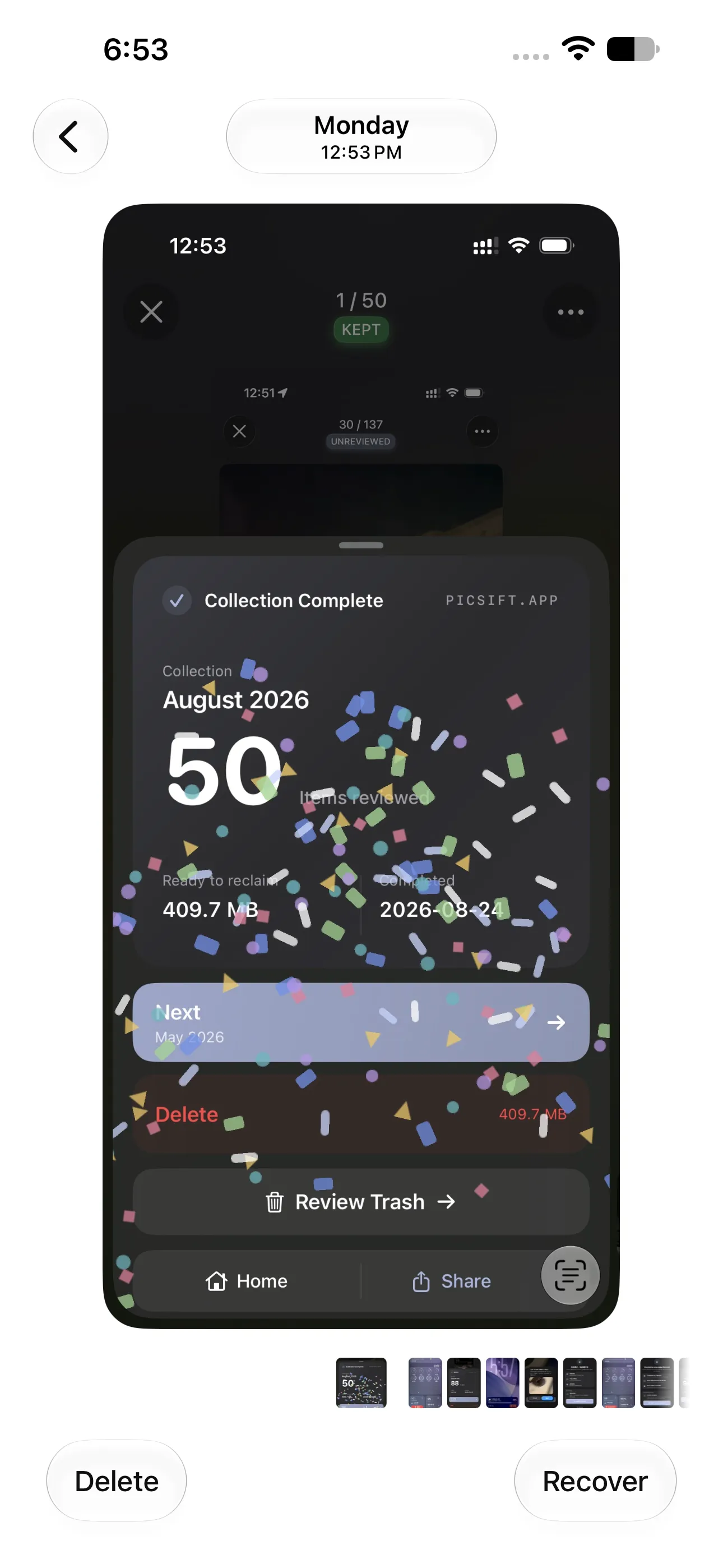
Recovery after a confirmed deletion is handled by Apple Photos, not by a separate PicSift backup. Captured on iOS 27 with PicSift 1.3.
Do not confirm a large deletion until you are comfortable with the change appearing across the whole synchronized library.
6. Limited Photos access limits what PicSift can review
iOS can let you grant an app access to selected photos instead of the full library. Apple’s developer guidance explains that the limited Photos library exposes only the assets the user chooses to share with an app.
If you give PicSift Limited Access:
- PicSift can review only the selected items;
- library totals and progress represent the accessible selection, not necessarily the entire Photos library;
- an album may appear incomplete;
- you may need to update the selected items in iOS Settings before reviewing more media.
You can change or revoke Photos access in iOS Settings at any time. Full Access is useful for a whole-library cleanup; Limited Access is useful when you want to restrict the session to a specific group.
7. iCloud Photos is synchronization, not a second independent copy
Seeing the same photo on several Apple devices does not necessarily mean you have several backups. With iCloud Photos, those devices can be views of one synchronized library, so a deletion propagates between them.
Apple explicitly notes that media synchronized through iCloud Photos is not duplicated inside the regular iCloud device backup. For irreplaceable originals, create a separate copy before a major cleanup. Apple provides export options in Archive or make copies of the information you store in iCloud.
For a complete preparation and recovery checklist, read How to clean up iPhone photos safely.
8. A reliable PicSift and iCloud Photos workflow
- Open Apple Photos and check that the library has finished syncing.
- Verify whether Optimize iPhone Storage is enabled.
- Export a separate copy of irreplaceable originals.
- Give PicSift access to the group you intend to review.
- Use a stable network if older media or large videos may need downloading.
- Review a manageable month, album, or media category.
- Inspect everything marked for removal before confirming.
- After cleanup, check Recently Deleted in Apple Photos for mistakes.
- Allow time for iCloud and storage totals to update across devices.
If iCloud Photos appears stuck, troubleshoot it in Apple Photos first. PicSift cannot restart iCloud synchronization, change your Apple Account settings, or force Apple to download an unavailable original.
Privacy boundaries
PicSift processes your photo and video library on the iPhone and does not upload it to PicSift-operated servers for processing. Apple may still process media, metadata, and requests as part of iCloud Photos, PhotoKit, Maps, StoreKit, diagnostics, and other system services you use.
That is why “on-device processing” does not mean “iCloud is disabled.” It means PicSift itself is not creating another server-side media library. Read the PicSift Privacy Policy for the complete distinction or visit PicSift Support if an item will not load.
Frequently asked questions
Do I need iCloud Photos to use PicSift?
No. PicSift works with the Apple Photos library available on the iPhone whether or not you enable iCloud Photos. With iCloud Photos off, Apple does not synchronize that library through iCloud Photos.
Does PicSift download my entire iCloud library?
No. PicSift works with assets made available through Apple’s Photos frameworks. Depending on Optimize Storage and the action you request, iOS may download individual originals or higher-quality versions when needed.
If I delete a photo in PicSift, will it disappear from my Mac?
Yes, if the Mac uses the same iCloud Photos library. PicSift requests the deletion on the iPhone, then Apple synchronizes the library change.
Can PicSift restore an item from Recently Deleted?
No. Open Apple Photos to recover or permanently remove Recently Deleted items. PicSift does not keep a server backup of deleted media.
Why can PicSift see only some photos?
The most likely reason is Limited Photos access. Check the Photos permission for PicSift in iOS Settings and add more selected photos or grant Full Access if appropriate.