
PicSift Guide
How to review photos before deleting them
Review iPhone photos safely before deleting them with a small-batch workflow, clear keep and remove decisions, and a final confirmation step.
The safest way to clean up an iPhone photo library is to review first and delete second. Work in a small scope, mark clear keep/remove decisions, leave anything uncertain unreviewed, then inspect the complete removal group before confirming a change to Apple Photos.
PicSift is built around that separation. A review decision is stored locally on your iPhone; it does not remove the photo from Apple Photos until you reach the final cleanup step and confirm it.
A practical review workflow
| Pass | Goal | Decision rule |
|---|---|---|
| First pass | Remove obvious clutter | Decide only when the answer is immediate |
| Context check | Compare similar moments | Keep the image that best preserves the event or information |
| Uncertain pass | Revisit unreviewed items | Keep or postpone when the cost of a mistake is high |
| Final review | Inspect everything marked for removal | Confirm only when the whole group looks right |
| Post-cleanup check | Catch mistakes quickly | Use Apple Photos and Recently Deleted |
1. Start with a small, understandable scope
Do not begin by trying to judge an entire multi-year library in one sitting. Start with a recent day, trip, event, or another group you can remember clearly. A manageable scope makes it easier to notice context and stop before decision fatigue takes over.
Apple Photos lets you browse the library by date and use collections to reach people, trips, media types, albums, and other views. Use the view that gives you the most useful context, then use PicSift when you want a focused keep/remove review flow. Apple documents its current organization in Browse your photo library on iPhone.
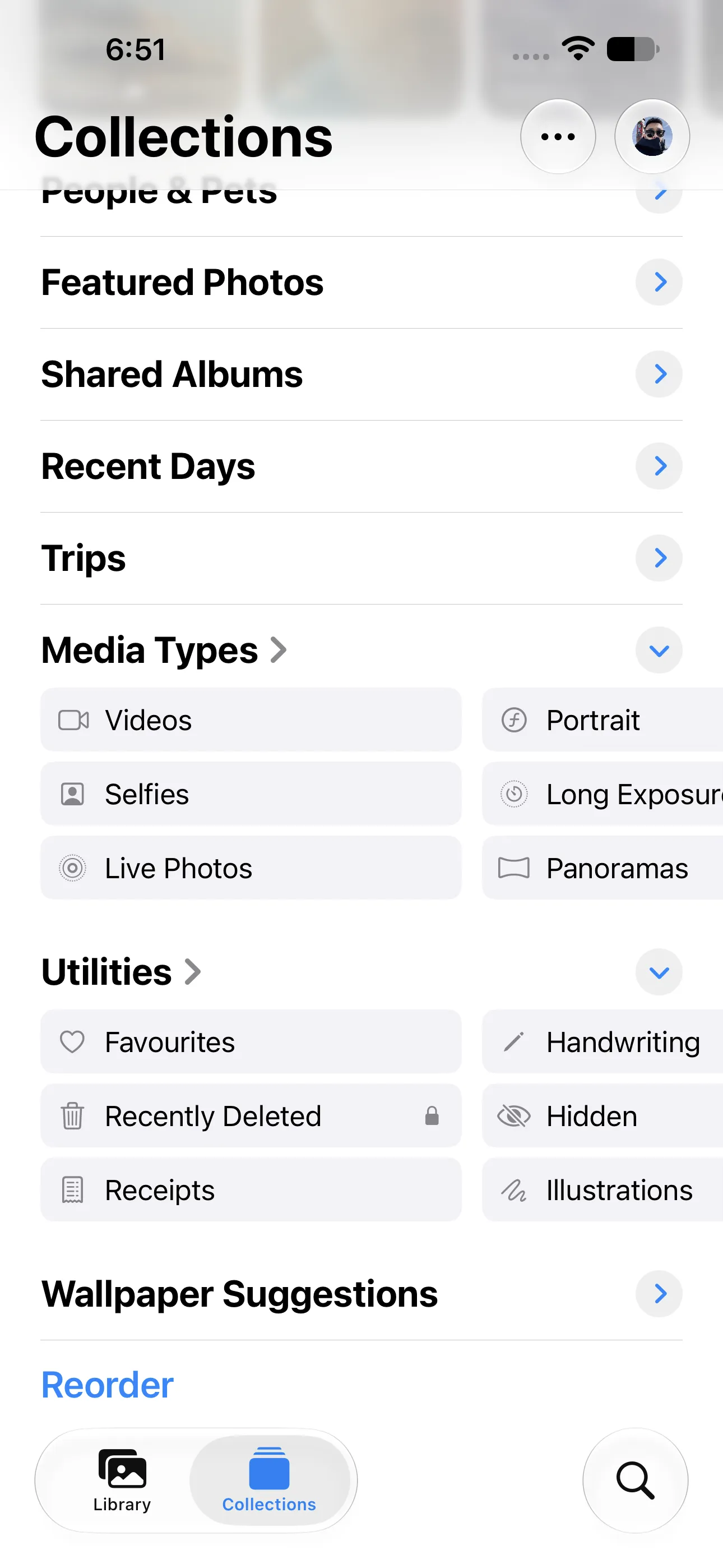
Starting with one recognizable media type or collection keeps the review scope manageable. Captured on iOS 27 with PicSift 1.3.
Before a large cleanup, also check whether iCloud Photos or a Shared Library is enabled. A confirmed deletion can affect the synchronized library, not only the screen in your hand. Read How PicSift works with iCloud Photos if you are unsure.
2. Make the easy decisions first
On the first pass, remove only items whose value is already clear:
- accidental shots of the floor, pocket, or a blank frame;
- screenshots whose task is finished;
- failed bursts where the subject is cut off or unusably blurred;
- temporary reference images you no longer need;
- screen recordings you created only to demonstrate a short-lived problem.
Keep anything that is clearly meaningful, useful, or the best version of a moment. When you hesitate, move on and leave it unreviewed. An uncertain photo costs little to retain for another pass, while an irreplaceable deletion can cost a great deal.
3. Review similar photos in context
Several photos can look redundant in a thumbnail but preserve different expressions, people, documents, or details. Before removing near-identical shots, compare:
- focus and motion blur;
- whether everyone important is visible;
- facial expressions and closed eyes;
- readable text, signs, receipts, or serial numbers;
- framing and crop room;
- whether a Live Photo captures a better instant;
- whether one image has already been edited or shared.
Do not use file size alone as the quality test. A larger video or photo may contain the exact detail you wanted to preserve.
4. Separate a mark from a deletion
In PicSift, an item can remain unreviewed or be marked as kept or for removal. Marking an item for removal does not immediately delete it from Apple Photos. This gives you a reversible status layer before the destructive step.
A useful rule is:
- mark obvious items during review;
- finish or pause the session;
- inspect the full removal group;
- reverse any questionable decision;
- confirm cleanup only after the group passes that check.
PicSift processes this workflow on your iPhone and does not upload your photo library to PicSift-operated servers. The PicSift Privacy Policy explains the product’s data handling.
5. Leaving an item unreviewed is a valid outcome
Moving on without changing an item’s status is not a failed decision. It leaves the item unreviewed when you do not currently have time or confidence to evaluate it. Revisit unreviewed items when you can compare them with related photos, ask someone involved, or export an important original first.
Pause the review when you notice yourself making faster, less careful decisions. A ten-minute session repeated regularly is often safer than one long purge.
6. Inspect the complete removal group
The final review is where isolated decisions become a real cleanup plan. Scan the group slowly and look for patterns that signal a mistake:
- the only photo from a date or event;
- an image containing a person missing from the kept group;
- a document, receipt, or QR code that still has a purpose;
- an edited image beside an unedited original;
- a long video that may contain a short important section;
- content that belongs to an iCloud Shared Photo Library.
If a photo would be difficult or impossible to recreate, keep it or export a verified copy before confirmation.
7. Confirm through iOS, then check Apple Photos
When you confirm cleanup, PicSift requests the library change through Apple Photos. iOS may show its own permission or deletion confirmation because Apple controls the photo library.
Open Apple Photos immediately afterward and verify that the intended items left the main library. Apple normally moves deleted photos and videos to Recently Deleted for 30 days, where you can recover them or delete them permanently. With iCloud Photos enabled, deletion and recovery synchronize across devices using that library. Apple explains the current behaviour in Delete or hide photos and videos on iPhone.
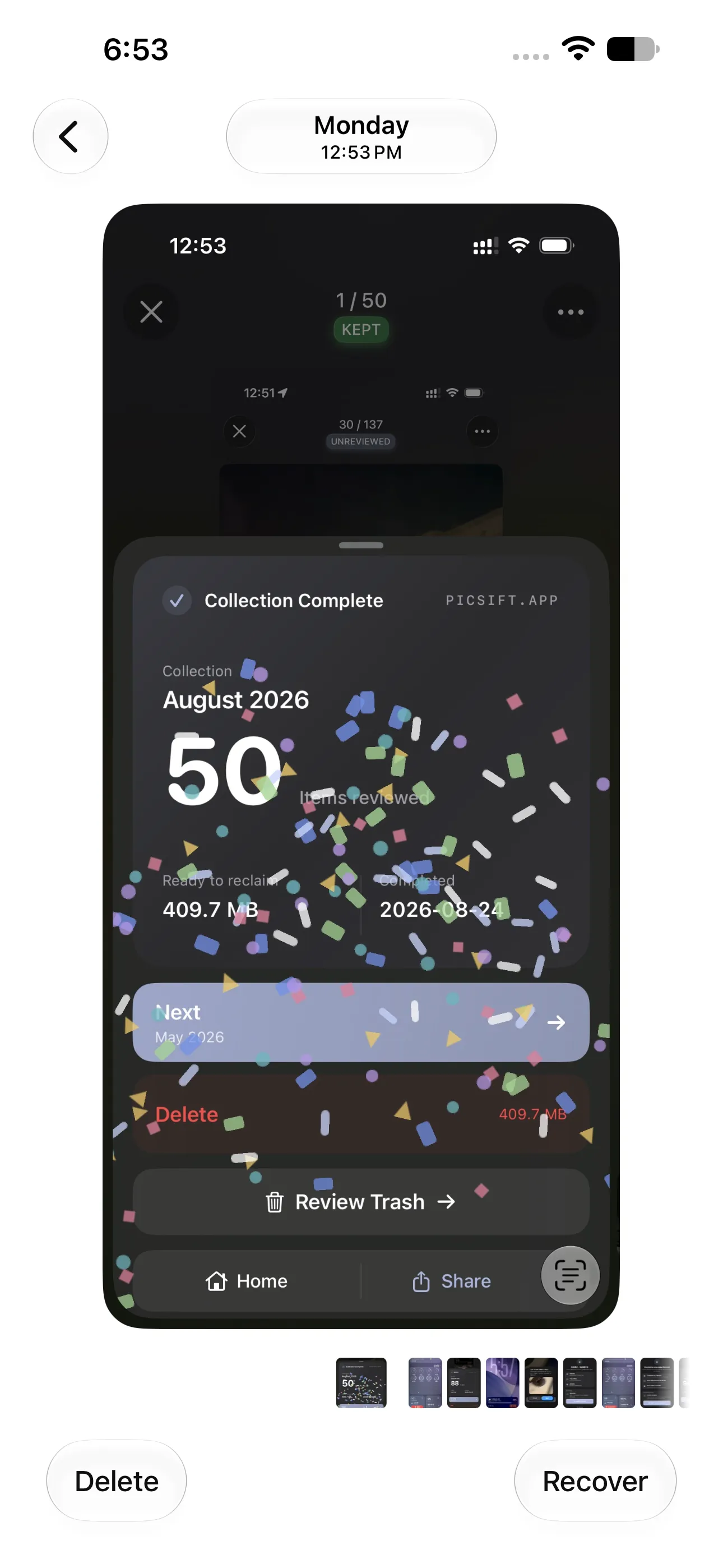
Use Recover if the post-cleanup check reveals a mistake. Captured on iOS 27 with PicSift 1.3.
For the complete timeline, read What happens when you delete a photo on iPhone.
A five-minute review routine
- Choose one recent date or recognizable event.
- Remove only obvious clutter on the first pass.
- Keep the strongest version of meaningful moments.
- Leave decisions that need context unreviewed.
- Review the complete removal group.
- Confirm the iOS cleanup request.
- Check Apple Photos and Recently Deleted for mistakes.
Repeat the routine regularly instead of waiting until storage pressure forces a rushed decision. For preparation and backup checks, use How to clean up iPhone photos safely.
Frequently asked questions
Should I delete every blurry or duplicate-looking photo?
No. Blur can be intentional, and similar images can preserve different people or details. Compare the context and keep anything meaningful or uncertain.
Does marking a photo for removal in PicSift delete it immediately?
No. PicSift stores the review decision locally. The item reaches Apple Photos deletion only after you review the marked group and confirm cleanup.
What should I do when I cannot decide?
Move on without changing its status and revisit it later. If it is irreplaceable, keep it or export a separate verified copy before deleting anything.
Can I recover a photo after confirming deletion?
Apple normally keeps deleted photos and videos in Recently Deleted for 30 days. Recovery is managed by Apple Photos, not by a PicSift server backup.
Will the deletion affect my other Apple devices?
Yes, if those devices use the same iCloud Photos library. Apple synchronizes deletion and recovery across that library.
Where can I get help with an unexpected result?
Check Apple Photos and Recently Deleted first, then visit PicSift Support with the iOS version and a description of the review and confirmation steps you completed.