
PicSift Guide
What happens when you delete a photo on iPhone
Learn where an iPhone photo goes after deletion, how iCloud Photos syncs the change, how Recently Deleted works, and when recovery ends.
When you delete a photo or video on iPhone, Apple normally removes it from the main Photos library and places it in Recently Deleted for 30 days. During that window you can recover it or delete it permanently; if iCloud Photos is enabled, Apple synchronizes the deletion and any recovery across devices using the same library.
In PicSift, marking an item for removal is an earlier step and does not immediately change Apple Photos. The deletion reaches the Photos library only after you review the marked group and confirm the cleanup action.
The deletion timeline
| Stage | What you see | Who controls it | Can you undo it? |
|---|---|---|---|
| Marked for removal in PicSift | Item remains in Apple Photos | PicSift stores a local review decision | Yes, change the decision before cleanup |
| Cleanup confirmed | Item leaves the main Photos library | PicSift requests the change through Apple Photos | Normally, through Recently Deleted |
| In Recently Deleted | Item is separated from the main library | Apple Photos | Yes, normally for up to 30 days |
| Recovered | Item returns to the Photos library | Apple Photos | It is active in the library again |
| Permanently deleted | Item is removed from Recently Deleted | Apple Photos | No recovery through Apple Photos |
Apple documents the system behaviour and recovery steps in Delete or hide photos and videos on iPhone.
1. Marking a photo in PicSift does not delete it
PicSift separates the review decision from the destructive action. When you mark a photo or video for removal, PicSift records that choice in its local review data. The item remains in the Apple Photos library and is still available to other apps and devices.
This gives you an opportunity to:
- change the decision;
- inspect the full group marked for removal;
- keep anything important or leave uncertain items unreviewed;
- stop the session without changing the Photos library.
No item should reach Apple Photos deletion merely because you viewed it or made an initial mark.
2. Confirmation sends the deletion request to Apple Photos
After you inspect the marked group and confirm cleanup, PicSift asks Apple Photos to delete those library items. iOS may present its own system confirmation because Apple controls permission to modify the Photos library.
PicSift does not move the media to a PicSift server, private cloud folder, or hidden PicSift trash. Apple Photos owns the library change and recovery process.
If you cancel the system confirmation or the request fails, verify the result in Apple Photos rather than assuming the deletion completed.
3. With iCloud Photos on, deletion is synchronized
Apple states that when you delete a photo or video on one device, it is deleted everywhere you use iCloud Photos. That can include other iPhones, iPads, Macs, Windows devices configured for iCloud Photos, and iCloud.com.
The change may not appear on every device at the exact same second. Apple notes that synchronization time can vary with internet speed and library size. The important point is that this is one synchronized library, not a local cleanup isolated to one iPhone.
Review Apple’s current explanation in Set up and use iCloud Photos, and read How PicSift works with iCloud Photos for the complete product boundary.
4. With iCloud Photos off, Apple does not perform iCloud Photos synchronization
If iCloud Photos is disabled, deleting an item changes the Photos library on that iPhone without using iCloud Photos to propagate the change. Other transfer, sync, backup, or shared-library arrangements may still affect where copies exist.
Do not assume that turning iCloud Photos off creates a backup. If an original matters, export a separate copy that you have opened and verified before deleting.
5. Recently Deleted is a temporary recovery window
Apple normally keeps deleted photos and videos in Recently Deleted for 30 days. The collection is locked by default and can be opened with Face ID, Touch ID, or the device passcode.
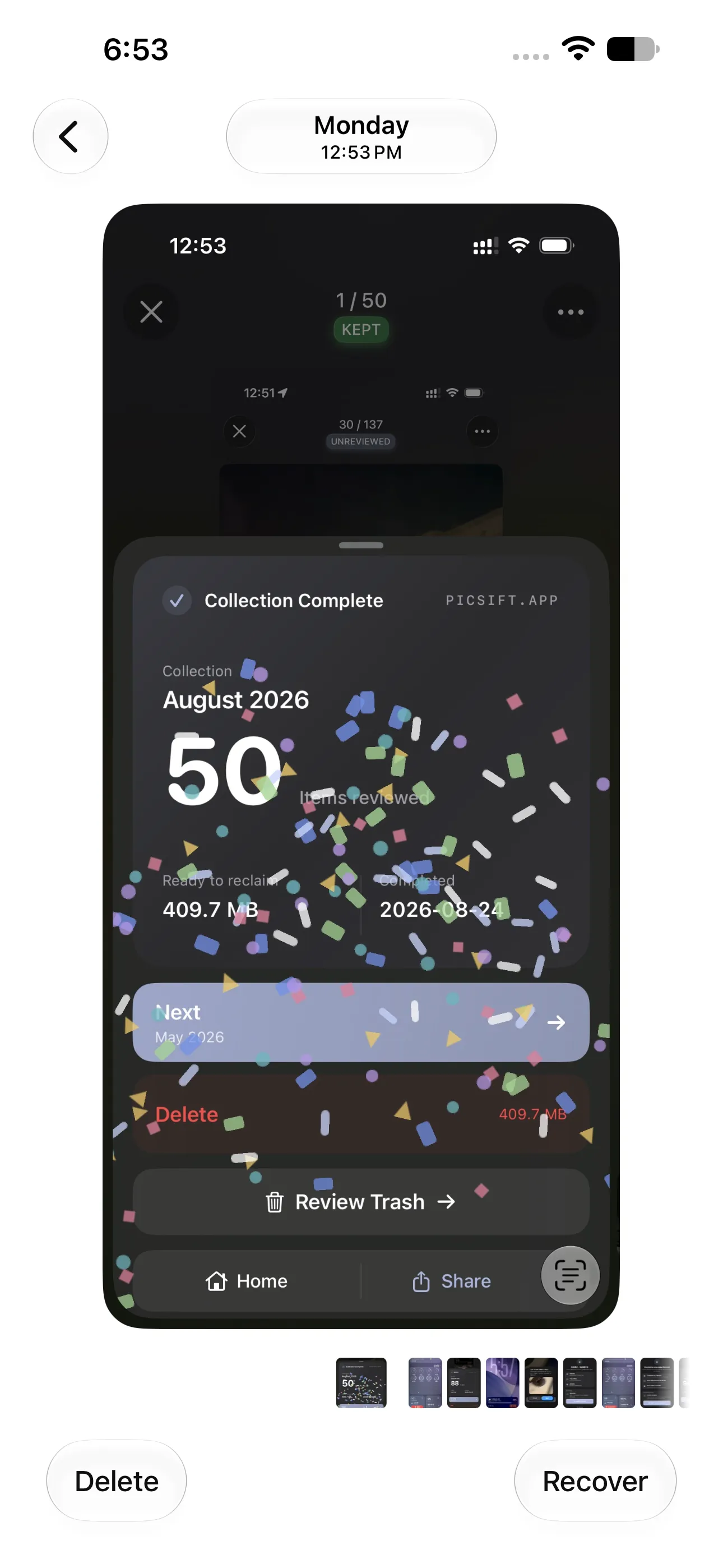
Recover returns the item to the library; Delete removes Apple Photos’ normal recovery option for that item. Captured on iOS 27 with PicSift 1.3.
To inspect it on current iPhone software:
- open Photos;
- tap Collections;
- find Recently Deleted under Utilities;
- tap View Album and unlock it;
- select an item, then choose Recover or Delete.
Apple can change menu wording and placement between iOS releases, so use its current iPhone deletion guide if your screen differs.
Recently Deleted is a recovery opportunity, not a substitute for a separate backup. Do not wait until the end of the 30-day period to check whether an important photo was removed accidentally.
6. Recovery returns the item to the library
When you recover an item from Recently Deleted, Apple Photos restores it to the Photos library. With iCloud Photos enabled, Apple synchronizes that recovery across the same library.
After recovery:
- confirm the item appears in Photos;
- allow time for it to reappear on other devices;
- check its album placement if organization matters;
- return to PicSift and refresh the accessible library state if necessary.
PicSift does not recover the media itself and does not hold a server copy. Recovery must happen through Apple Photos or from a separate copy you maintain.
7. Permanent deletion ends Apple Photos recovery
You can manually delete an item from Recently Deleted before the 30 days expire. Apple states that once it is permanently deleted, it cannot be recovered through Photos.
Before permanent deletion, confirm that:
- the selection contains only unwanted items;
- irreplaceable originals exist in a separate verified location;
- iCloud Photos has finished processing recent changes;
- the item is not part of a shared-library decision that affects someone else;
- you are not deleting merely because a storage total has not refreshed yet.
If there is any doubt, leave the item in Recently Deleted and use the remaining recovery window.
Delete, hide, remove from album: three different actions
These commands can look similar but produce different results:
Delete from the Photos library
The item leaves the main library and normally moves to Recently Deleted. With iCloud Photos enabled, the deletion synchronizes across the library.
Hide a photo or video
The item remains in the library but moves to the Hidden collection. Apple notes that Hidden is locked by default and can itself be hidden from the Photos interface. Hiding is useful for visibility, not storage cleanup.
Delete an album
Deleting a regular album does not delete the photos and videos inside it. Apple’s album guide states that those items remain in the photo library and in other albums where they appear.
If the goal is to reclaim storage, make sure you are deleting the library item—not only an album or organizational reference.
Be extra careful with iCloud Shared Photo Library
An iCloud Shared Photo Library is collaborative. Apple states that participants have permission to add, edit, and delete shared content, and those changes are visible to the group.
When a participant deletes an item from the Shared Library, it moves to Recently Deleted. Apple also notes that only the contributor can permanently delete that item from Recently Deleted. Review Apple’s Shared Photo Library guidance before removing shared content.
If you are unsure whether a photo is in your Personal Library or Shared Library, verify it in Apple Photos before confirming cleanup.
Does deletion immediately free storage?
Deleting media reduces what remains in the active library, but storage totals and iCloud synchronization can take time to update. Items also remain recoverable in Recently Deleted until Apple permanently removes them or you delete them there.
Measure before and after using Settings → General → iPhone Storage, and allow Photos time to process the change. Do not permanently erase an unverified selection simply to force an immediate number change.
If the number still does not make sense, follow Why is my iPhone storage still full after deleting photos? to separate Recently Deleted, iCloud storage, optimization, and other device storage.
For a complete preparation checklist, follow How to clean up iPhone photos safely.
A safe post-deletion check
- Open Apple Photos immediately after cleanup.
- Confirm the intended items left the main library.
- Open Recently Deleted and scan for mistakes.
- Recover anything uncertain.
- Check another Apple device if iCloud Photos is enabled.
- Wait for synchronization and storage totals to update.
- Permanently delete only after verifying the selection and any separate copies.
PicSift processes its review workflow on the iPhone and does not upload your library to PicSift-operated servers. Read On-device photo processing explained or the PicSift Privacy Policy for details. For a failed or unexpected cleanup action, visit PicSift Support.
Frequently asked questions
Does deleting a photo on iPhone delete it from iCloud?
Yes, when iCloud Photos is enabled for that synchronized library. Apple deletes it from iCloud Photos and the other devices using the same library.
How long can I recover a deleted iPhone photo?
Apple normally keeps it in Recently Deleted for 30 days. You can recover or permanently delete it during that period.
Does PicSift keep a backup after deletion?
No. PicSift does not operate a server backup of your photo library. Apple Photos manages Recently Deleted, and you are responsible for separate copies of important originals.
Will deleting an album free photo storage?
No. Deleting a regular album leaves its photos and videos in the main library. Delete the actual library items only after verifying them.
Is hiding a photo the same as deleting it?
No. A hidden item remains in the library and moves to the Hidden collection. It still occupies storage.
Can another Shared Library participant delete my photo?
Participants can delete content from the Shared Library. Apple states that only the contributor can permanently delete that item from Recently Deleted, but everyone can see the Shared Library change.