
PicSift Guide
How much storage do iPhone photos and videos actually use?
Learn what determines iPhone photo and video file size, how to check the exact size of an item, and how to estimate what your own library will use.
There is no honest universal answer to how much storage an iPhone photo or video uses. Two photos from the same iPhone can have different file sizes, and a minute of video can change dramatically with resolution, frame rate, format, camera mode, and the detail in the scene.
The reliable answer is to measure media from your camera settings and library. On iPhone, open a photo or video in Photos, swipe up or tap the Info button, and read its file size. For the whole device, open Settings → General → iPhone Storage.
This guide explains what changes those numbers, how to estimate future storage without relying on a misleading average, and why the Photos total on your iPhone may not equal the full-resolution size of your iCloud Photos library.
Quick answer
| Media type | What usually has the largest effect on size | Best way to measure it |
|---|---|---|
| Standard photo | Resolution, HEIF or JPEG, scene detail, and editing data | Open the item in Photos and view Info |
| Live Photo | The still image plus its short motion and audio component | View the individual Live Photo’s Info |
| Portrait or high-resolution photo | Resolution, depth information, format, and scene detail | Measure several photos taken with the same mode |
| Standard video | Duration, resolution, frame rate, and HEVC or H.264 | Measure a representative clip, then divide by its duration |
| Slow-motion or Cinematic video | Duration and the mode’s recording settings | Measure clips from that specific mode |
| ProRes video | Duration, resolution, frame rate, and ProRes configuration | Use the Camera estimate and verify the completed clip |
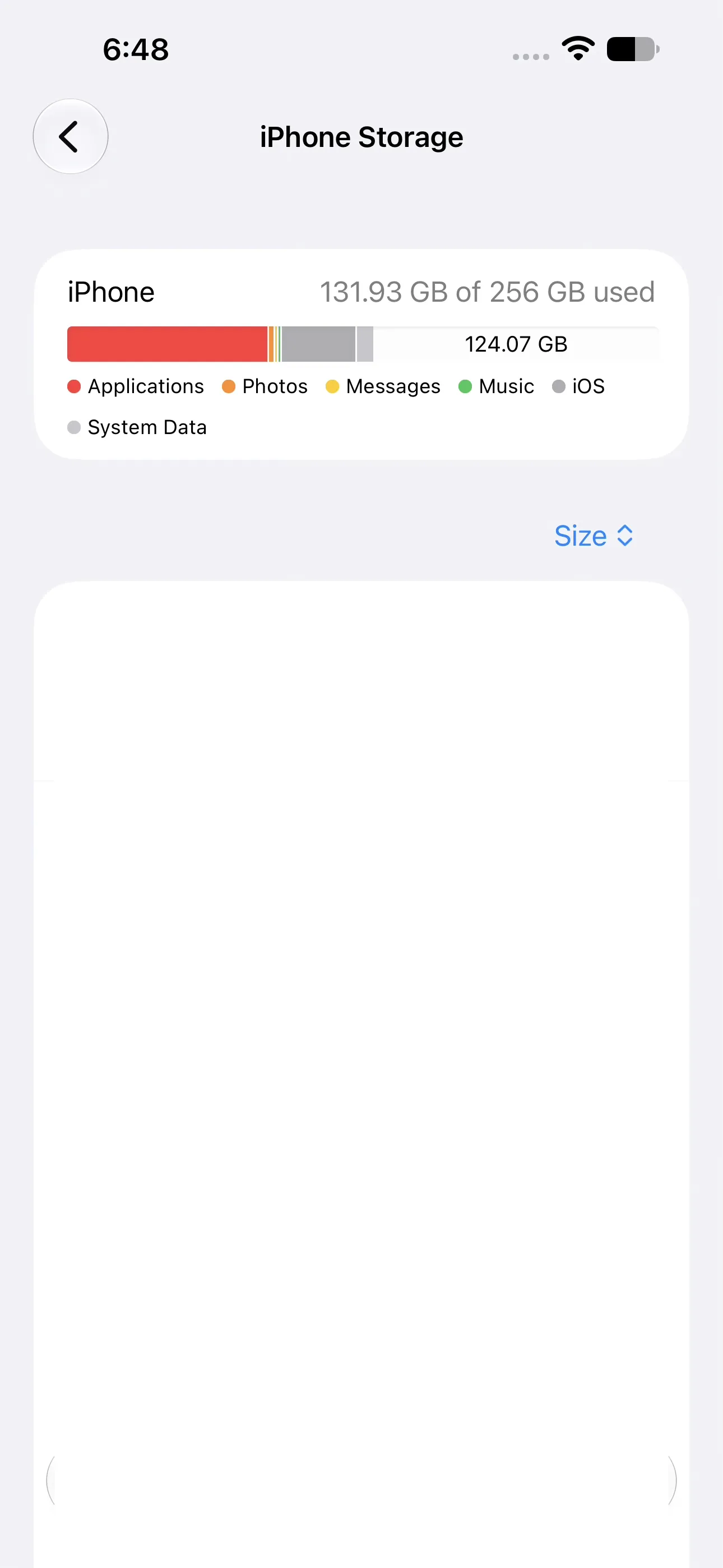
The system storage chart is the starting point for measuring device storage, but it does not identify which individual photos are safe to remove. Captured on iOS 27 with PicSift 1.3.
The practical conclusion is simple: videos usually deserve attention before ordinary photos when storage is tight, but size alone cannot tell you what is safe to delete.
Why one “average photo size” is unreliable
An iPhone does not save every photo as an identical block of data. Compression responds to the content of the image. A simple scene with a clean sky may compress differently from foliage, hair, text, noise, or low-light detail.
The capture settings also matter:
- High Efficiency uses HEIF for photos and HEVC for video where supported.
- Most Compatible uses JPEG for photos and H.264 for video.
- higher-resolution captures contain more image information;
- Live Photos include motion and audio around the still image;
- RAW and ProRAW preserve substantially more capture data than a standard processed photo;
- edits and associated resources can add data without creating an obvious second image in the library.
Apple states that HEIF and HEVC provide better compression than JPEG and H.264, using less storage while preserving the same visual quality. You can review the formats under Settings → Camera → Formats. See Apple’s guide to HEIF and HEVC media.
Do not switch to Most Compatible solely because the names sound safer. It improves compatibility with older software, but it can use more storage. Choose it when your workflow requires JPEG or H.264 rather than as a cleanup technique.
Why a minute of iPhone video has no fixed size
Video size is driven by several settings at once:
- Duration: a ten-minute clip contains far more encoded data than a ten-second clip.
- Resolution: 4K records more image detail than 1080p or 720p.
- Frame rate: 60 or 120 frames per second records more frames than 24 or 30.
- Codec: HEVC generally stores video more efficiently than H.264.
- Camera mode: slow motion, Cinematic, spatial video, and ProRes have different requirements.
- Scene complexity: motion, grain, water, confetti, leaves, and other changing detail can affect compression.
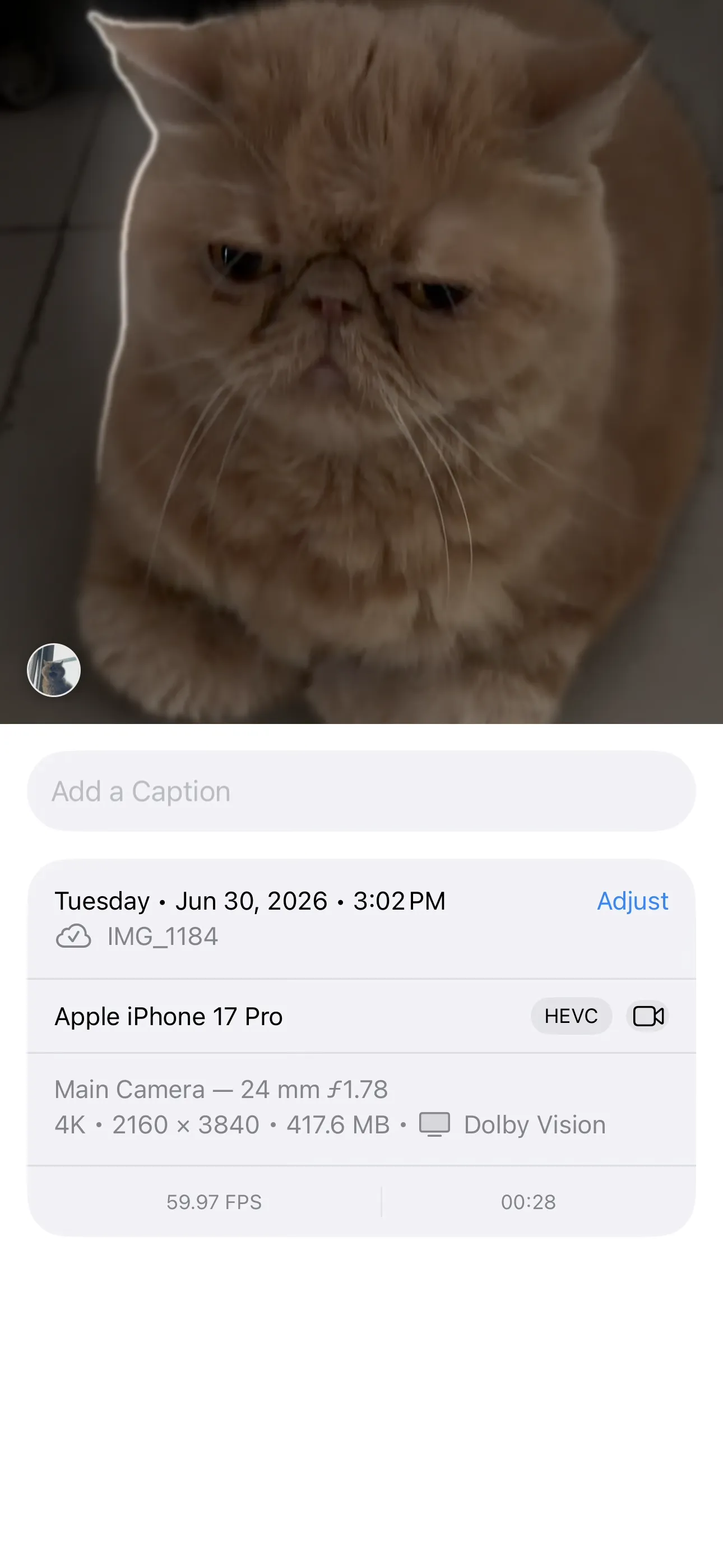
A short high-resolution clip can still be large: this 28-second 4K HEVC example is 417.6 MB. Captured on iOS 27 with PicSift 1.3.
Apple gives one particularly useful upper-end comparison: ProRes files can be up to 30 times larger than HEVC files. ProRes is intended for editing workflows, not everyday space-efficient recording. See About Apple ProRes on iPhone.
For normal recording, check Settings → Camera → Record Video. iOS displays the options supported by your model and may show its own storage estimates. Treat those figures as planning estimates, then verify a completed clip in Photos.
How to check the exact size of one photo or video
In the iOS 27 layout shown in the capture below:
- open Photos;
- open the photo or video you want to inspect;
- swipe up, or tap the Info button;
- read the filename, format, dimensions, and file size;
- for a video, also record its duration.
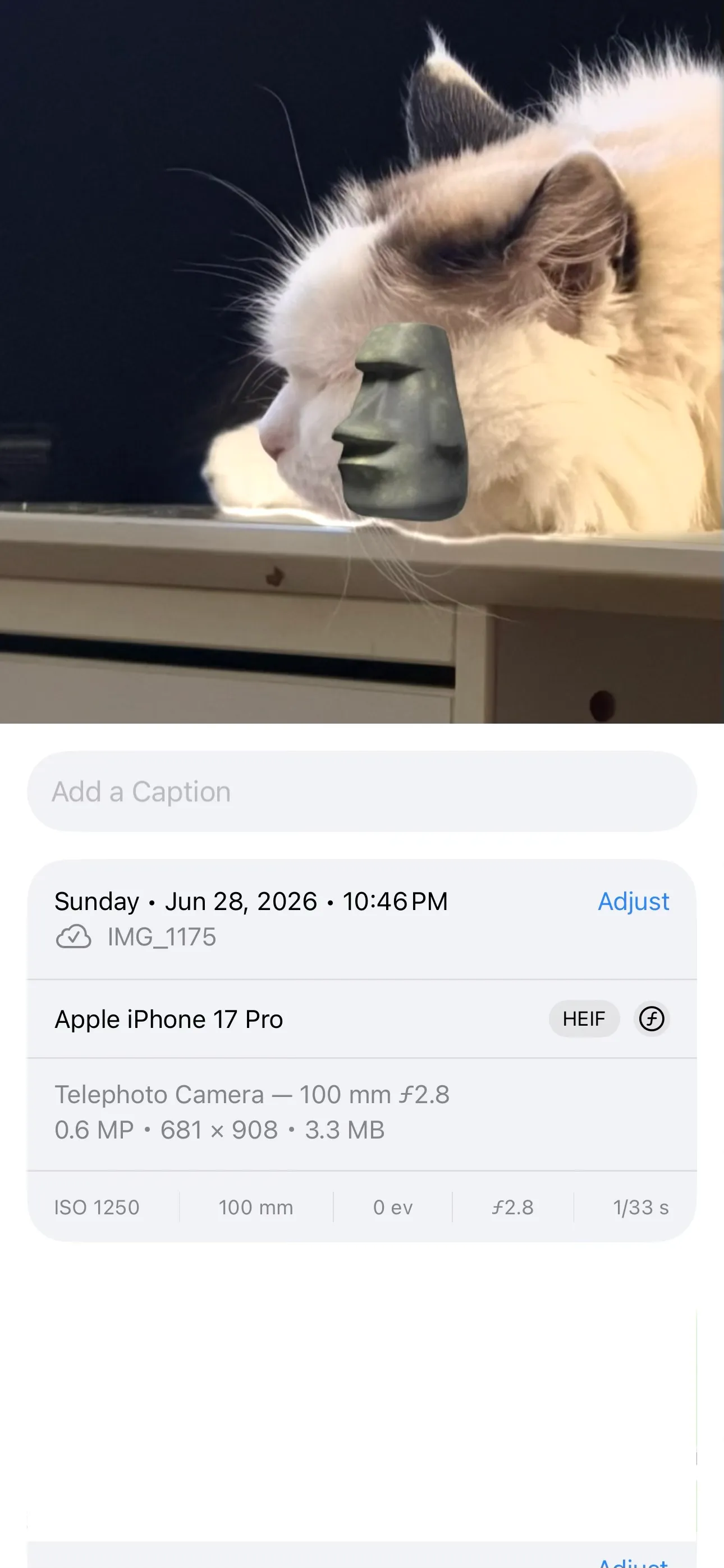
The Info panel reports the actual file size for the selected item; it is more reliable than applying one universal average to every photo. Captured on iOS 27 with PicSift 1.3.
Apple documents that the Info panel can show camera metadata including file size in See photo and video information on iPhone.
This is the best number for comparing individual items. It is more useful than a generic web estimate because it reflects the actual file in your library.
A reproducible way to estimate your own photo storage
Use a small sample instead of one unusually large or small image.
- Choose 20 recent photos taken with the camera mode you use most.
- Open Info for each item and record its file size.
- Add the 20 sizes.
- Divide by 20 to get a working average for that sample.
- Multiply that average by the number of similar photos you expect to keep.
- Repeat separately for Live Photos, high-resolution photos, screenshots, and imported images.
For example, if your measured sample average is A MB and you expect to keep N photos, the planning estimate is:
estimated storage = A × N
Keep the units consistent. Roughly 1,000 MB is 1 GB in the decimal storage figures commonly shown for device capacity, although software may calculate or display units differently.
This method is intentionally not filled with a universal value for A. Your measured result is the evidence the estimate needs.
A reproducible way to estimate video storage
Group videos by settings before calculating:
- record a representative clip using your normal format, resolution, and frame rate;
- make it long enough to include the kind of movement you usually capture;
- open the completed video in Photos and view Info;
- divide its file size by its duration in minutes;
- multiply that rate by the number of minutes you expect to record;
- repeat for other modes such as 4K 60 fps, slow motion, Cinematic, or ProRes.
Use:
estimated video storage = measured MB per minute × planned minutes
Do not use a 1080p HEVC sample to predict 4K ProRes storage. The settings are not comparable.
Test conditions and evidence boundary
The screenshots in this guide were captured on iOS 27 with PicSift 1.3. Apple can change labels and menu placement between iOS releases, so use the linked Apple documentation when the interface on your iPhone differs.
We have not published a synthetic “PicSift test average” because no physical test iPhone was available for a controlled capture set during this revision. A result from an unspecified device, camera mode, codec, and scene would look precise while being difficult to reproduce.
For a useful before-and-after test, record all of these conditions:
| Test field | What to record |
|---|---|
| iPhone model | Exact model and storage capacity |
| iOS version | Settings → General → About |
| Camera format | High Efficiency or Most Compatible |
| Photo mode | Standard, Live, Portrait, high resolution, RAW, or ProRAW |
| Video mode | Resolution, frame rate, codec, and special mode |
| iCloud Photos | On or off |
| Device storage option | Optimize iPhone Storage or Download and Keep Originals |
| Before measurement | Photos usage and available storage in iPhone Storage |
| Cleanup set | Count, type, and measured size of reviewed items |
| After measurement | Same screen after Photos and iCloud finish processing |
That test record is more valuable than an isolated screenshot. A future update can add a real-device capture set without presenting it as a universal result.
Why iPhone Storage may not match the sum of original files
Open Settings → General → iPhone Storage to see how much device space Photos currently uses. Apple describes that screen in Manage storage on iPhone.
If iCloud Photos and Optimize iPhone Storage are enabled, full-resolution originals can remain in iCloud while the iPhone keeps space-saving versions when needed. The local Photos total can therefore be much smaller than the original library stored in iCloud.
Apple explains this behaviour in Manage your photo and video storage. It also means:
- the file size shown for an item is not always a promise that the same amount is permanently resident on the device;
- deleting an optimized item may free less local space than its full-resolution original size;
- downloading originals can increase local usage;
- iCloud storage and iPhone storage are separate limits.
Measure the limit you are actually trying to manage. Buying more iCloud storage does not increase the physical capacity of the iPhone.
How to find the largest opportunities safely
iOS does not make a single, complete “sort every photo by file size” control the centre of the Photos workflow. Start with media types that are more likely to contain large or low-value items:
- long videos;
- screen recordings;
- 4K and high-frame-rate clips;
- ProRes video;
- slow-motion footage;
- repeated exports from editing apps;
- screenshots that have completed their purpose.
In Photos, open Collections → Media Types to narrow the review. Apple documents the current location in Locate photos and videos by media type on iPhone.
Then inspect the actual items. A large video of an irreplaceable event is not clutter, while twenty small accidental screenshots may be easy to remove. Follow How to delete large videos and screenshots on iPhone for a safe review sequence.
Where PicSift fits
PicSift helps you review photos and videos and separate keep/remove decisions before confirming cleanup. Review processing stays on your iPhone, and PicSift does not upload your library to PicSift-operated servers.
PicSift does not change the camera codec, compress originals, control iCloud optimization, or override Apple’s storage calculation. Use Photos Info and iPhone Storage for measurement; use PicSift when the difficult part is deciding what should stay.
If you delete through Apple Photos while iCloud Photos is enabled, the change synchronizes across devices using the same library. Deleted media normally remains in Recently Deleted for 30 days. Review What happens when you delete a photo on iPhone before permanently removing anything.
Frequently asked questions
How many photos fit in 1 GB on an iPhone?
There is no reliable universal count. Measure a representative group of your own photos, calculate the sample average, and divide 1,000 MB by that average. Keep Live Photos, high-resolution captures, RAW files, screenshots, and imported images in separate samples.
How much storage does one minute of 4K iPhone video use?
It depends on frame rate, codec, camera mode, device model, and the recorded scene. Check the estimate under Settings → Camera → Record Video, then measure a representative completed clip in Photos.
Are Live Photos larger than regular photos?
A Live Photo contains a still image plus motion and audio around the capture, so it generally contains more data than a comparable still-only photo. Measure the specific item in Photos Info rather than assuming a fixed multiplier.
Does High Efficiency reduce photo and video size?
Yes. Apple says HEIF and HEVC provide better compression than JPEG and H.264 while preserving the same visual quality. Compatibility requirements may still justify Most Compatible for some workflows.
Why did deleting a large video free less space than expected?
The iPhone may already have held an optimized local version, the item may remain in Recently Deleted, Photos may still be processing the change, or another storage category may have changed. See Why iPhone storage can stay full after deleting photos.
Can PicSift compress my photo library?
No. PicSift is a review and cleanup tool, not a media compressor. Apple Photos, iCloud Photos, and your camera settings determine storage and format behaviour.