
PicSift Guide
Why is my iPhone storage still full after deleting photos?
Learn why iPhone storage may stay full after deleting photos, how Recently Deleted and iCloud Photos affect space, and what to check next.
If your iPhone storage is still full after deleting photos, first check Recently Deleted, then compare iPhone Storage with iCloud storage. Deleted items normally remain recoverable for 30 days, storage totals may not update immediately, and the space problem may come from downloaded media, apps, messages, or System Data rather than the photos you removed.
Do not keep deleting valuable photos just because one number has not changed. Use the checks below to find out where the storage is actually being used.
Quick diagnosis
| What you see | Most likely explanation | What to check |
|---|---|---|
| Photos were deleted recently | They are still in Recently Deleted, or Photos is still processing the change | Photos → Collections → Recently Deleted |
| iPhone storage is full but iCloud has room | The limit is on the device, not in iCloud | Settings → General → iPhone Storage |
| iCloud storage is full but the iPhone has room | The synchronized library or other iCloud data is using the cloud allowance | Settings → your name → iCloud |
| Photos uses less space, but total free space barely changes | Another category grew, or the storage chart has not recalculated | Compare every category in iPhone Storage |
| Deleting many photos freed less space than expected | Optimize iPhone Storage may already have kept smaller device versions | Settings → your name → iCloud → Photos |
| Storage falls and then rises again | Apps may be downloading media, caches, messages, or offline files | Review the largest apps in iPhone Storage |
1. Check Recently Deleted
When you delete a photo or video, Apple normally moves it to Recently Deleted for 30 days. It no longer appears in the main library, but it remains available for recovery during that period.
To review the collection on current iPhone software:
- open Photos;
- tap Collections;
- scroll to Utilities;
- open Recently Deleted and unlock it;
- recover anything you removed by mistake;
- permanently delete only the items you have verified.
Apple explains the recovery window and permanent deletion in Delete or hide photos and videos on iPhone.
Emptying Recently Deleted removes Apple Photos’ normal recovery option. If the photos matter, make a separate copy and open a few exported files before permanently deleting anything.
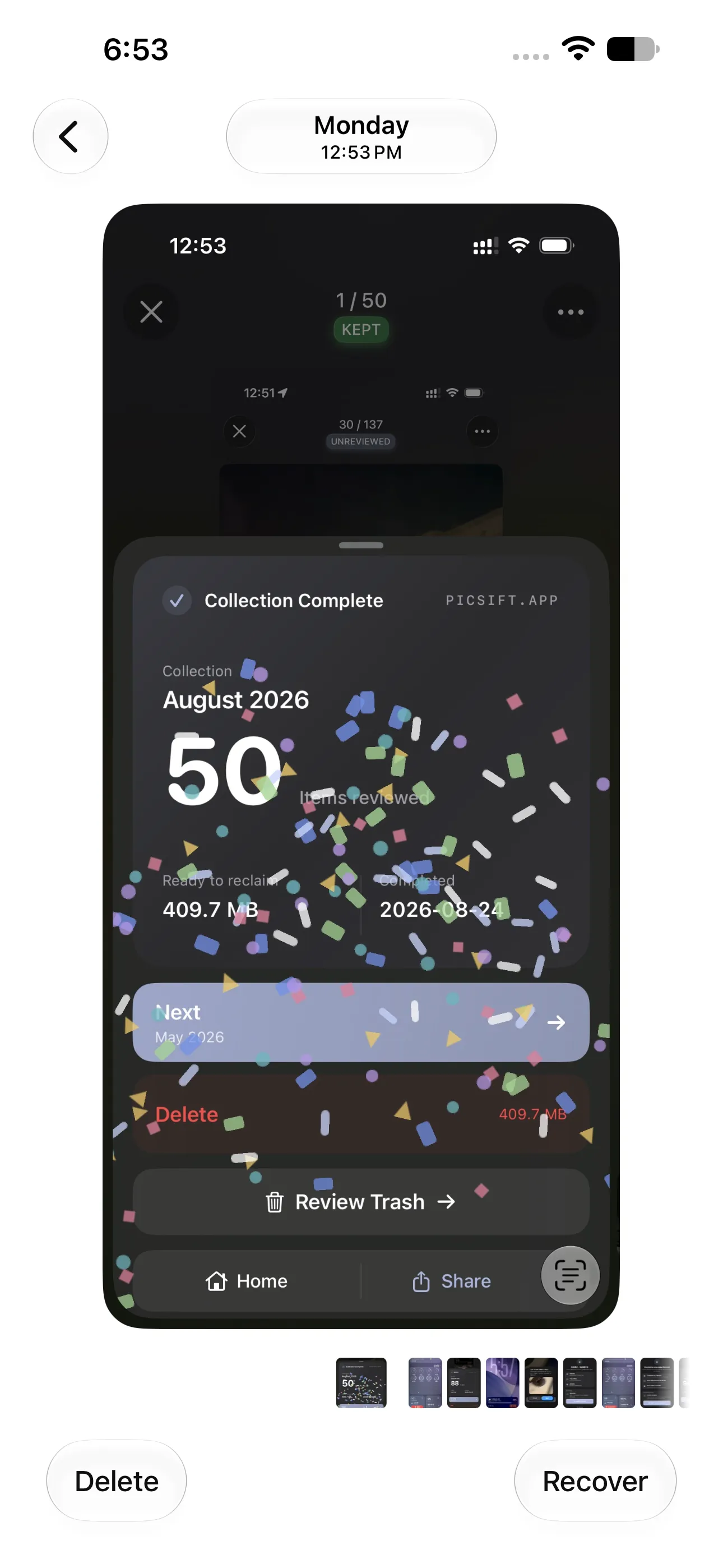
Recently Deleted still gives you a choice between permanent deletion and recovery. Captured on iOS 27 with PicSift 1.3.
2. Make sure you are reading the right storage number
An iPhone can show several storage-related numbers, and they do not measure the same thing.
iPhone storage
Open Settings → General → iPhone Storage. This is the space physically available on the device. The chart includes Photos, apps, messages, downloaded media, iOS, and System Data.
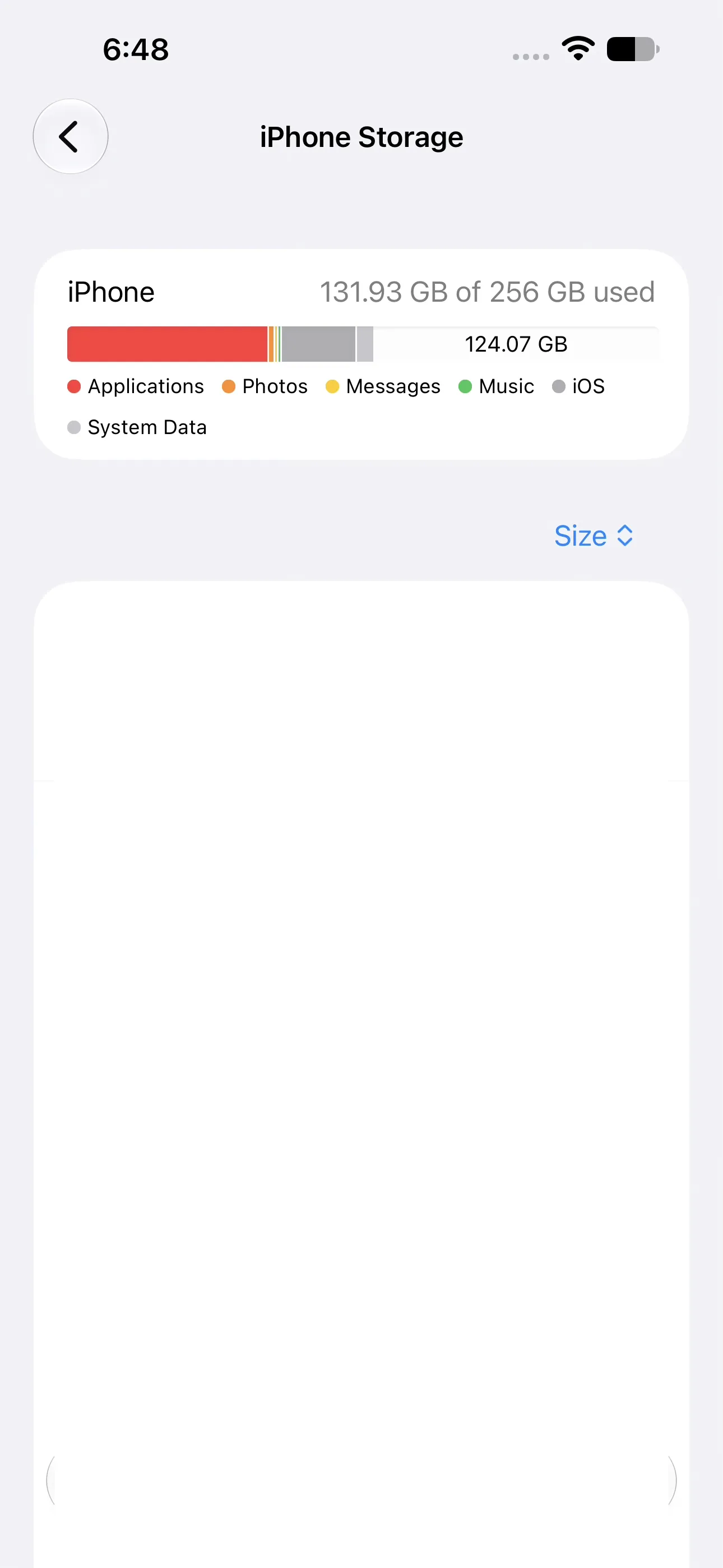
This chart measures storage on the iPhone itself; it is not the same as the amount stored in iCloud. Captured on iOS 27 with PicSift 1.3.
iCloud storage
Open Settings → your name → iCloud. This is the online allowance shared by services such as iCloud Photos, iCloud Drive, Messages in iCloud, and device backups.
Buying more iCloud storage does not increase the physical capacity of an iPhone. Deleting a local app download does not necessarily reduce iCloud usage. Before changing anything, identify which limit is actually full.
Apple’s device and iCloud storage guide explains the distinction.
3. Understand what Optimize iPhone Storage changes
With iCloud Photos enabled, Optimize iPhone Storage can keep space-saving versions on the iPhone while full-resolution originals remain in iCloud. Apple says optimization happens when the device needs space, beginning with photos and videos you access least.
That creates an easy misunderstanding: a 4 GB group of original videos in iCloud may already occupy much less than 4 GB on the iPhone. Deleting those videos removes them from the synchronized library, but the immediate device-space gain can be smaller than their full original size.
Check the setting under Settings → your name → iCloud → Photos. Do not switch options repeatedly in an attempt to force a number to change; downloading originals can require additional device space.
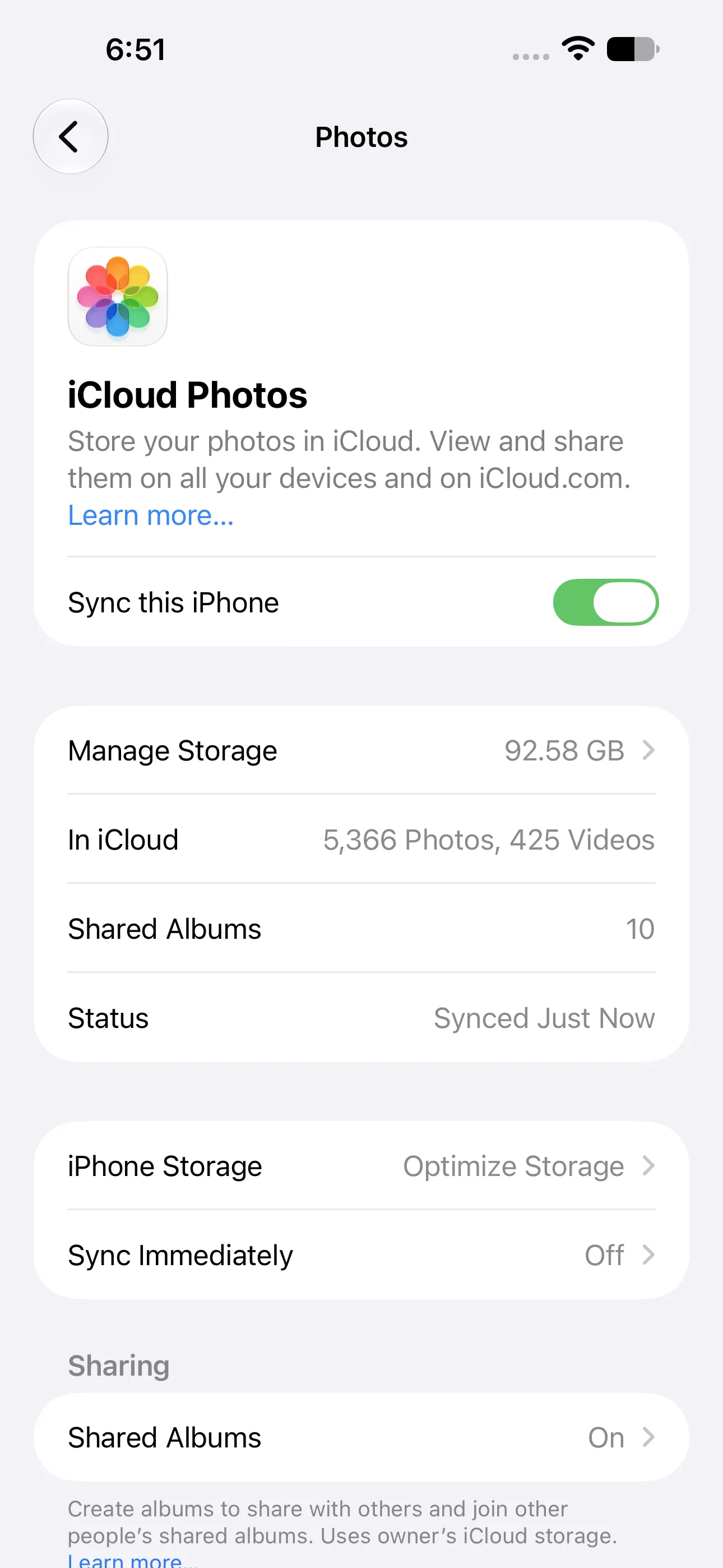
The sync status and optimization choice explain why the full-resolution library size may differ from local iPhone storage. Captured on iOS 27 with PicSift 1.3.
See Apple’s Manage your photo and video storage for its current explanation of optimization.
4. Allow Photos and the storage chart time to update
Deletion, iCloud synchronization, thumbnail cleanup, and storage accounting do not always finish at the same moment. A large library or a slow connection can make the process take longer.
After confirming the deletion:
- connect the iPhone to power and a reliable network;
- leave Photos time to finish its current synchronization work;
- reopen Settings → General → iPhone Storage later;
- restart the iPhone once if the chart appears stuck;
- compare the new numbers with a screenshot of your starting point.
A restart may prompt the interface to recalculate, but it is not a storage-cleaning technique by itself. If the same total remains after Photos has finished processing, continue through the next checks.
5. Confirm that you deleted library items—not albums
Deleting a regular album does not delete the photos and videos inside it. The album disappears, but its contents remain in the Photos library and continue to use storage.
Hiding a photo also does not free space. The item remains in the library and moves to the Hidden collection.
For storage cleanup, the photos or videos themselves must leave the library. Review What happens when you delete a photo on iPhone before permanently removing anything.
6. Check whether another category is using the space
The Photos number can fall while the iPhone still appears full because another category has grown. In iPhone Storage, sort your attention by size rather than guessing.
Common places to inspect include:
- downloaded movies, music, podcasts, and maps;
- large attachments in Messages;
- offline files in Files or cloud-storage apps;
- social, streaming, and editing apps with downloaded media;
- video projects that contain copies of source clips;
- browser website data;
- iOS updates already downloaded to the device.
Use the storage recommendations shown by iOS, but read each action before accepting it. Offload App keeps an app’s documents and data, while Delete App can remove them. The right choice depends on whether the data is synchronized or backed up elsewhere.
System Data can change as iOS manages logs, caches, voices, fonts, and temporary files. There is no universal safe target size and no reason to install a third-party “cache cleaner” that claims it can bypass iOS protections.
7. Look for large videos before deleting more photos
Storage pressure is often driven by a small number of videos rather than hundreds of ordinary photos. Screen recordings, long 4K clips, slow-motion video, and downloaded edits can each be large.
Before deleting:
- identify the largest replaceable or already-exported videos;
- verify any independent copy;
- remove a small group;
- inspect Recently Deleted;
- measure the result after Photos updates.
Follow How to delete large videos and screenshots on iPhone for a category-by-category workflow.
8. Check iCloud Photos synchronization before making more changes
If Sync this iPhone is enabled, deleting a photo on the iPhone also deletes it from iCloud Photos and other devices using that synchronized library. A photo visible on a Mac or iPad may be another view of the same library—not a separate backup.
Open Photos and check the library’s synchronization status. If it is paused, offline, or still processing a large change, allow it to finish before judging the result on another device.
If you want to keep an original outside the synchronized library, export and verify a separate copy first. Read How PicSift works with iCloud Photos for the product and synchronization boundaries.
A safe order of operations
Use this sequence instead of repeatedly deleting more:
- Take screenshots of iPhone Storage and iCloud storage.
- Confirm whether the full limit is on the device, in iCloud, or both.
- Review Recently Deleted and recover mistakes.
- Verify separate copies of irreplaceable originals.
- Check whether Optimize iPhone Storage is enabled.
- Allow Photos and iCloud synchronization to finish.
- Recheck the complete iPhone Storage chart.
- Inspect large videos, downloads, Messages, and the largest apps.
- Permanently delete verified items only if you need the space immediately.
- Measure again before starting another cleanup batch.
For a more complete preparation checklist, use How to clean up iPhone photos safely.
Where PicSift fits
PicSift helps with the decision-heavy part of photo cleanup: reviewing photos and videos, marking what to keep or remove, and inspecting the removal group before confirming. Review progress stays on the iPhone, and PicSift does not upload your photo library to PicSift-operated servers for processing.
PicSift does not control Apple’s storage calculation, iCloud synchronization, Recently Deleted, app caches, or System Data. It is not a backup service and cannot recover permanently deleted media.
If Photos storage has fallen but another category remains large, PicSift cannot reduce that category. Use iPhone Storage to identify the actual source before deleting more memories.
Frequently asked questions
Why did deleting thousands of photos free only a little space?
Optimize iPhone Storage may already have stored smaller versions on the device, so the local space used can be much less than the originals’ full size. Some deleted items may also remain in Recently Deleted while Photos processes the change.
Do I have to empty Recently Deleted to free space?
If you need space urgently, permanently deleting verified items from Recently Deleted may complete their removal sooner. Doing so also ends Apple Photos’ normal recovery option, so recover mistakes and verify important copies first.
Will restarting my iPhone free photo storage?
Restarting does not delete photos or create meaningful capacity by itself. It can help if the storage interface has not refreshed, but you still need to identify and remove actual stored data.
Why is iCloud still full after I deleted photos?
The deletion may still be synchronizing, the items may remain in Recently Deleted, or other iCloud categories may be using the allowance. Check the iCloud storage breakdown rather than assuming Photos is the only cause.
Can PicSift clear System Data or app caches?
No. PicSift reviews media available through Apple Photos. It does not bypass iOS to clear other apps, System Data, or protected caches.