
PicSift Guide
PicSift vs Apple Photos
Compare PicSift and Apple Photos for reviewing, organizing, deleting, recovering, and synchronizing iPhone photos—and learn why they work best together.
PicSift and Apple Photos do different jobs. Apple Photos is the system photo library for browsing, editing, searching, organizing, sharing, synchronizing, deleting, and recovering media. PicSift is a focused review workflow that helps you make keep/remove decisions and inspect them before requesting a change to that Apple library.
PicSift does not replace Apple Photos, iCloud Photos, Recently Deleted, or Apple’s built-in duplicate detection. For most people, the strongest workflow is to use Apple Photos as the library and PicSift when a deliberate review session is easier than general library browsing.
At a glance
| Capability | Apple Photos | PicSift |
|---|---|---|
| Owns the iPhone photo library | Yes | No |
| Browse by date, people, trips, albums, and media type | Yes | Not its primary role |
| Edit, crop, adjust, and share media | Yes | No |
| Detect and merge duplicate items | Yes, when Photos finds duplicates | No automatic duplicate-merging workflow |
| Focused kept/to-delete/unreviewed workflow | General selection and deletion tools | Yes |
| Review a proposed removal group before cleanup | Manual selection is possible | Built into the PicSift workflow |
| Synchronize through iCloud Photos | Yes | Relies on Apple Photos library behaviour |
| Manage Recently Deleted and recovery | Yes | No |
| Upload media to PicSift-operated servers | Not applicable | No |
The comparison describes the current product roles, not every feature Apple may add to Photos or every PicSift release. Check the app and current Apple documentation when a specific capability is essential.
What Apple Photos is designed to do
Apple Photos is the central place to view and manage the iPhone photo library. Apple documents library browsing by date, collections, media types, albums, search, editing, and sharing in Get started with Photos on iPhone.
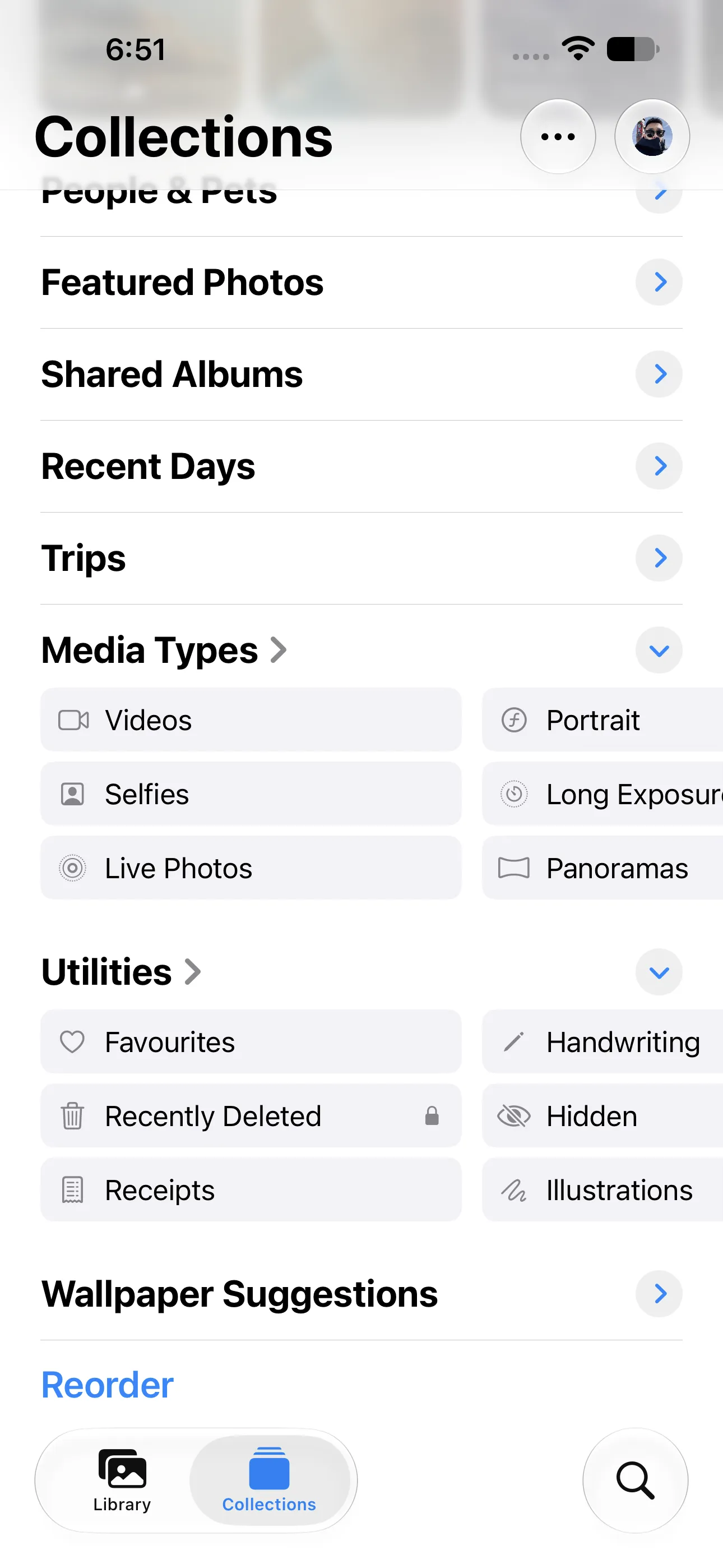
Apple Photos remains the system library and provides collections, media types, utilities, editing, and recovery. Captured on iOS 27 with PicSift 1.3.
Use Apple Photos when you want to:
- find a particular person, place, trip, date, or media type;
- create and manage albums;
- edit, crop, adjust, favourite, hide, or share an item;
- inspect photo information;
- use built-in duplicate detection;
- recover content from Recently Deleted;
- manage a library synchronized through iCloud Photos.
Apple controls the actual photo-library permissions and deletion confirmation. Even when PicSift initiates a cleanup request, Apple Photos owns the library result.
What PicSift is designed to do
PicSift narrows the task to a repeated decision: mark an item as kept or for removal, or move on while leaving it unreviewed. It records review progress locally, lets you inspect the group marked for removal, and asks you to confirm before requesting deletion through Apple Photos.
Use PicSift when you want to:
- turn a large, vague cleanup into a sequence of individual decisions;
- pause without losing local review progress;
- leave uncertain photos unreviewed instead of forcing a choice;
- separate the first removal mark from the destructive action;
- inspect the full removal group before confirmation;
- keep the PicSift review workflow on the iPhone without uploading your library to PicSift-operated servers.
This is a workflow difference, not a claim that PicSift can manage the library without Apple Photos.
Searching and organizing: Apple Photos wins
If you need to find a photo by person, location, date, album, or content, start in Apple Photos. Its library and Collections views preserve broader context that a cleanup-focused interface is not intended to replace.
Apple Photos is also the right tool for albums. Deleting a normal album does not delete its photos from the library, which is useful for organization but means album cleanup is not storage cleanup. Apple explains this distinction in Create and work with photo albums on iPhone.
Repeated review decisions: PicSift is more focused
Apple Photos lets you select and delete multiple items, but its interface serves many other library tasks. PicSift gives kept/to-delete decisions and unreviewed items a dedicated flow and provides a final review boundary before deletion.
That focus can help when the difficulty is not finding one known photo but working through hundreds of mixed, ordinary images without making the destructive action immediate.
See How to review photos before deleting them for a small-batch process that uses this boundary.
Duplicate cleanup: start with Apple Photos
Apple Photos can identify duplicate photos and videos and place them in a Duplicates collection. Apple lets you compare and merge detected duplicates; if Photos has not found any, the Duplicates collection may not appear. See Find and merge duplicate photos and videos on iPhone.
If your problem is specifically exact or near-duplicate media, check Apple’s built-in tool first. If your problem is broader—old screenshots, failed takes, irrelevant references, and photos whose value requires human context—PicSift’s general review workflow addresses a different task.
Deletion and recovery: Apple remains in control
PicSift can request deletion only after you confirm cleanup. Apple Photos then manages the library change and normally moves deleted items to Recently Deleted for 30 days. If iCloud Photos is enabled, Apple synchronizes deletion and recovery across devices using the same library.
PicSift does not run a separate trash folder or server backup. Use Apple Photos to verify the result and recover a mistaken deletion. Read What happens when you delete a photo on iPhone for the full timeline.
Privacy roles are different too
PicSift’s review processing occurs on the iPhone, and PicSift does not upload your library to PicSift-operated servers. Apple Photos may use device and Apple services—including iCloud Photos—according to the settings and services you enable.
“On-device PicSift processing” does not mean “no network activity anywhere on the phone.” It describes PicSift’s boundary. Read On-device photo processing explained and How PicSift works with iCloud Photos before changing a synchronized library.
A workflow that uses both
- Open Apple Photos to understand the date, event, album, or media type you want to review.
- Use Apple’s Duplicates collection first if duplicates are the main issue.
- Export and verify irreplaceable originals when appropriate.
- Use PicSift for a focused kept/to-delete review, leaving uncertain items unreviewed.
- Inspect the proposed removal group and confirm only when it is correct.
- Return to Apple Photos to verify the library and Recently Deleted.
- Allow iCloud Photos time to synchronize before judging the final result.
For the broader preparation checklist, follow How to clean up iPhone photos safely.
Frequently asked questions
Does PicSift replace Apple Photos?
No. Apple Photos remains the system library and controls organization, editing, sharing, synchronization, deletion, and recovery. PicSift adds a focused review workflow.
Can Apple Photos already remove duplicates?
Yes. When Apple Photos detects duplicates, it shows a Duplicates collection and offers a Merge action. That is different from reviewing mixed non-duplicate media.
Why use PicSift if Apple Photos can delete items?
Use PicSift when you value a repeated kept/to-delete flow, the option to leave items unreviewed, saved local review progress, and a separate inspection of the removal group before confirmation.
Does PicSift edit or organize albums?
No. Use Apple Photos for editing, albums, search, sharing, and broad library organization.
Who manages recovery after deletion?
Apple Photos. Deleted items normally remain in Recently Deleted for 30 days. PicSift does not keep a server backup of the library.
Where can I ask about a specific workflow?
Visit PicSift Support and describe whether you use iCloud Photos, Shared Library, and the review scope involved.